1.9 Add Note To Job. Version 1.0. Last Updated January 2026.
Adding Notes into your jobs allows all users in your system to see what the latest progress is or review notes about conversations with customers or subcontractors. Notes cannot be deleted once added into the job History (unless User's role allows through permissions) .
Open the job you wish to add a Note to.
Use the Pencil icon in the quick actions on the right hand side of your job screen to open the 'Add Note To History' form.

Use the 'Template' drop down to select which template you would like to use to prefill the 'Note*' field, you can add further text into the Note field after selecting the template. Or, simply type your note in the field without using a template.
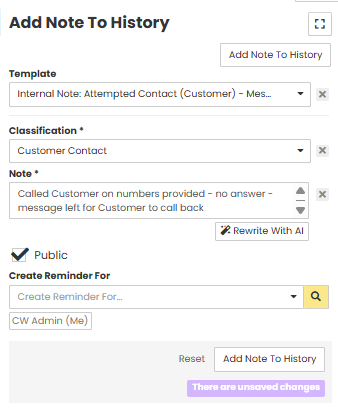
You can create a reminder for yourself or another user at the same time as adding your note. Pick a user from the 'Create Reminder For' drop down menu, the 'Reminder Due' field will appear which you can edit using the Calendar icon on the right hand side.

Click 'Add Note To History' at the bottom of the form.
Once the Note has been added you will see a green successful image.

Navigate to the 'History' tab from your Job menu on the left hand side of your Job screen.
You will see the Note in the history, the history shows any latest entry or action at the top.

Was this article helpful?
That’s Great!
Thank you for your feedback
Sorry! We couldn't be helpful
Thank you for your feedback
Feedback sent
We appreciate your effort and will try to fix the article