1.7 Send Email. Version 1.0. Last updated January 2026
From any screen within the Job select the Envelope Icon on the right hand side of the screen

Use the Template drop down to select the email template you wish to use. (These can be set up through Administration).
The subject line and the body of the email will auto fill as per the template set up. These fields can be edited and added to as needed.

Use the Address book to select who you want to send your email to. Alternatively, type the email address into the 'To' box.
(The address book is auto populated with anyone assigned on the job, including customers, clients, subcontractors and internal staff).

You can attach any documents or photos to your email that are saved to the Documents section on the job in Contractor Workspace. You will also be able to access any Company Documents on file.
Select Add Attachments button.
Choose which documents or photos you would like to attach by selecting the check box.
Select Add Attachments.

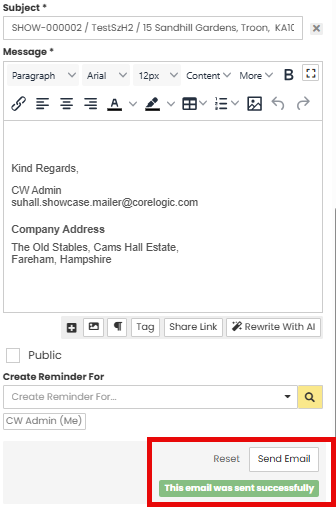
Once you are happy with your email click the Send Email button at the bottom of the screen. When the email has been sent you will see the green success message and the email form will reset itself.
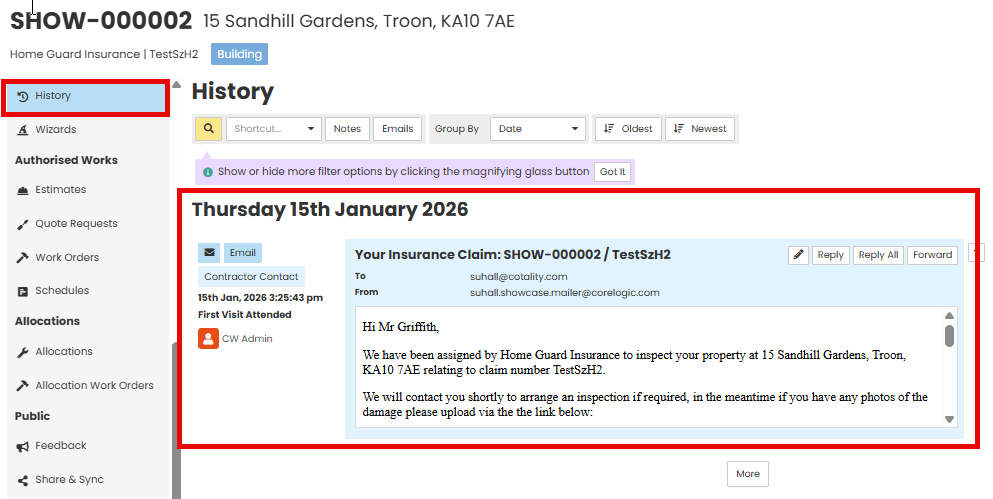
The history will log the email and be shown as below.
Was this article helpful?
That’s Great!
Thank you for your feedback
Sorry! We couldn't be helpful
Thank you for your feedback
Feedback sent
We appreciate your effort and will try to fix the article