30.3 Trade Portal - Set Up A Sync Contact From The Contacts Page. Version 1.0. Last updated March 2026
Set Up A Sync Contact From The Contents Page
To create a Synced Contact from the Contact page, go to the “Contact” menu option and search for the Contact who you wish to invite to the Trade Portal.

From within the contact details Page you will need to click the “Sync Details” button in the top right hand of the screen.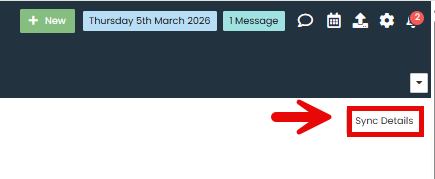
A pop-up will now appear, and you will need to select the “Send Sync Invitation” button.
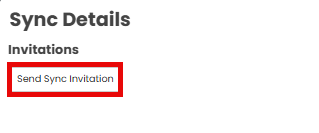
Another pop-up will show confirming if you do wish to send an email to the contact. The email this will go to is the main email address on the Contact.
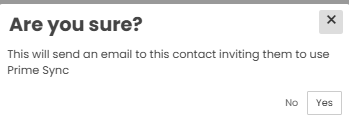
After clicking yes, the contact will receive an email with the invitation link for them to set up their account. After they have completed this you will be able to send them Work Orders, allocations etc.
Was this article helpful?
That’s Great!
Thank you for your feedback
Sorry! We couldn't be helpful
Thank you for your feedback
Feedback sent
We appreciate your effort and will try to fix the article