30.1 Trade Portal - Send A New Invite To Subcontractor. Version 1.0. Last updated March 2026
Trade Portal is a feature within Contractor Workspace that allows subcontractors a limited access to the system to enable digital allocations and submissions of quote requests, work orders, compliance documents and general job updates including notes and documents.
In short this function allows two companies to sync data between each other.
Send A New Invite To A Subcontractor
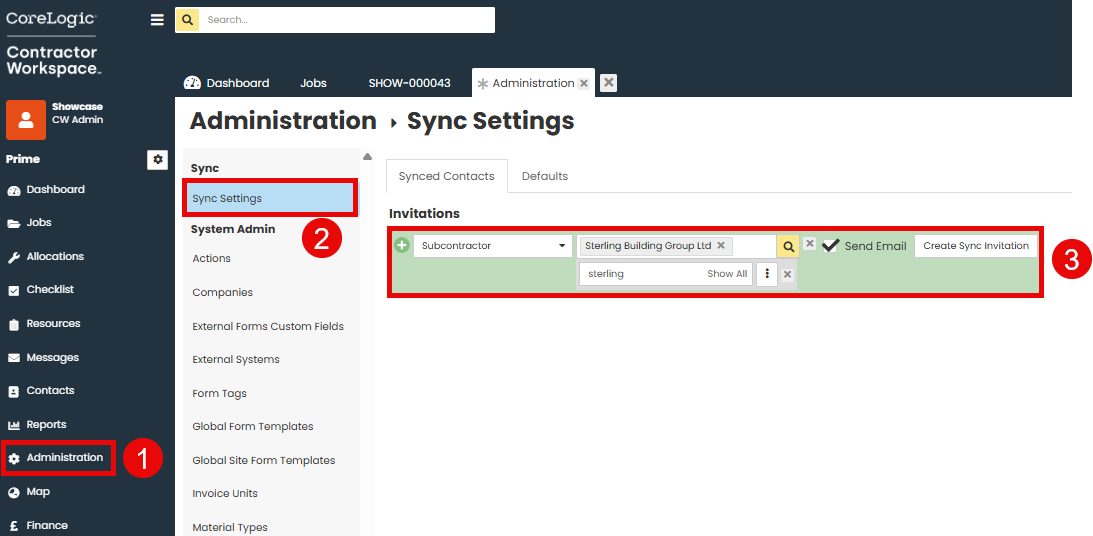
 Select Administration
 Select Sync Settings
 Search your contacts to select a subcontractor. Select Create Sync Invitation.
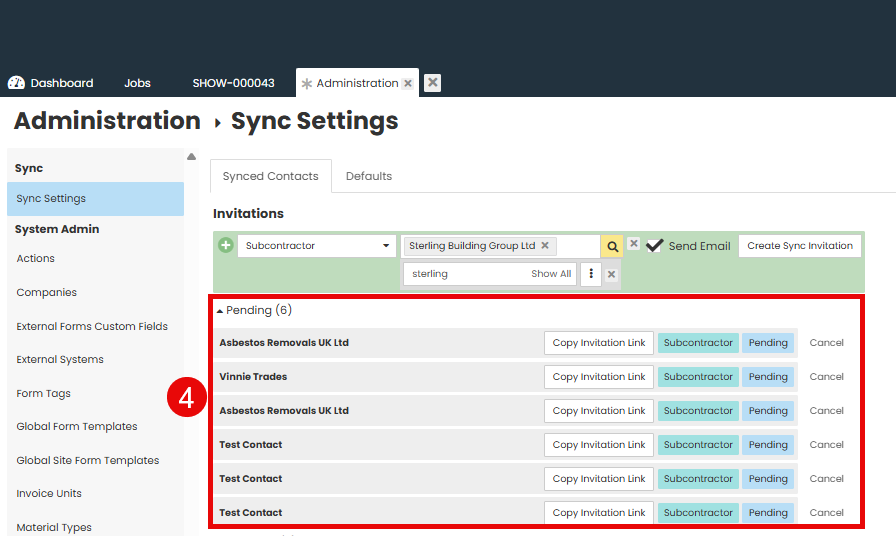
 Pending Invitations will show underneath
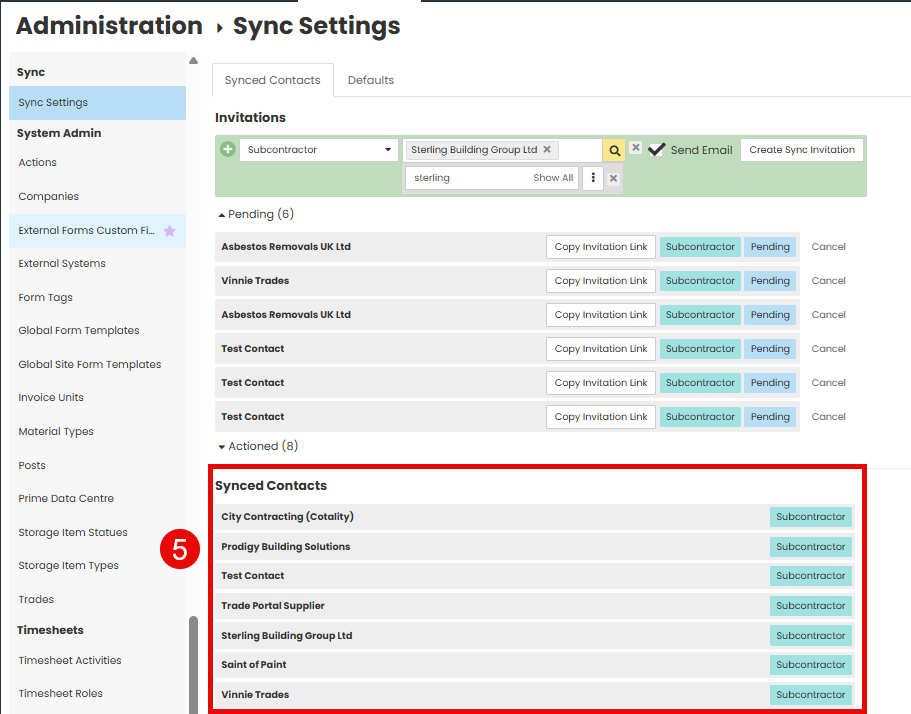
 Subcontractors who accept your invitation will show in Synced Contacts
The selected subcontractors will receive the invitation to the email address saved against their contact profile.
Note - You can also 'Copy invitation link' to clipboard and email them the link yourself.
Accepting An Invitation
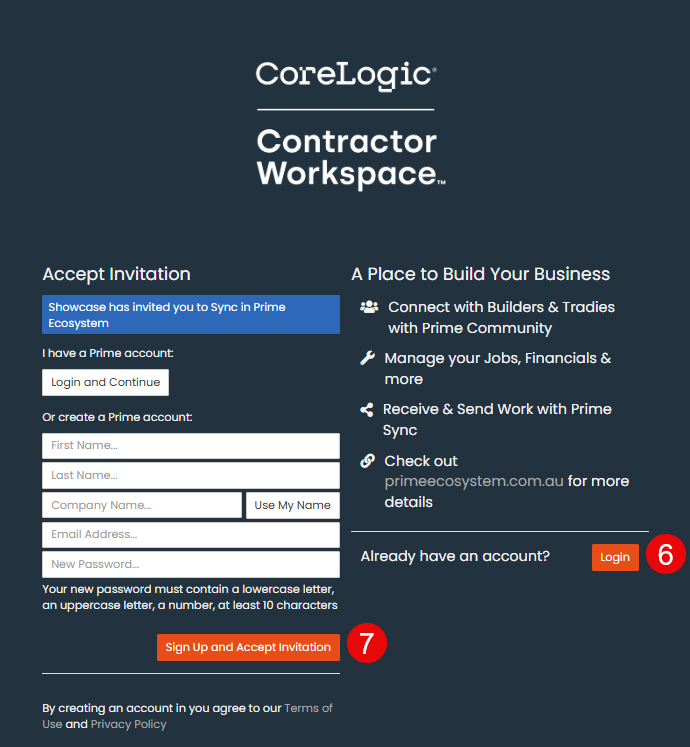
 In accepting the invitation, if the subcontractor already has a Contractor Workspace account, they can log in and accept
 In accepting the invitation, if the subcontractor doesn't have a Prime account, they can sign up and accept. The subcontractor can enter the details of their company to set up the access.
Note - The details/email does not have to be the same as the one set in the Parent company for that contractor. We call this type of account a "Trade" account, and it's set up specifically to work with Prime Sync, giving only those functions required to sync with your jobs.
After accepting the invitation the subcontractor will be redirected to their dashboard.
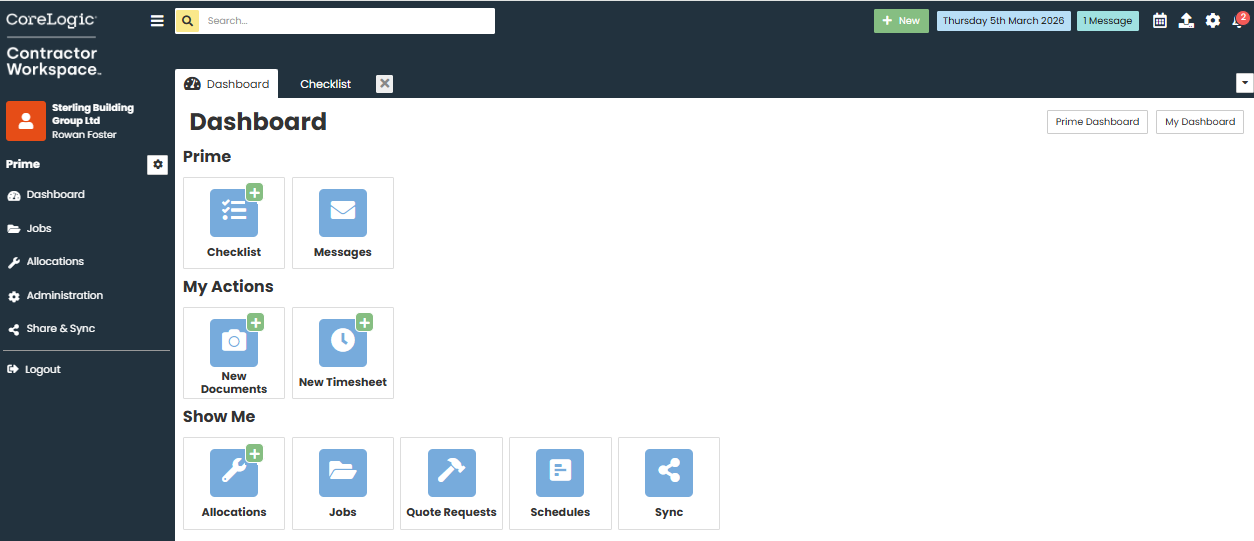
Sync Requests
Now that you are synced with your subcontractor you can now sync data to them, and they back to you.
Both companies have a Sync Request list available that will show all requests across the whole company.
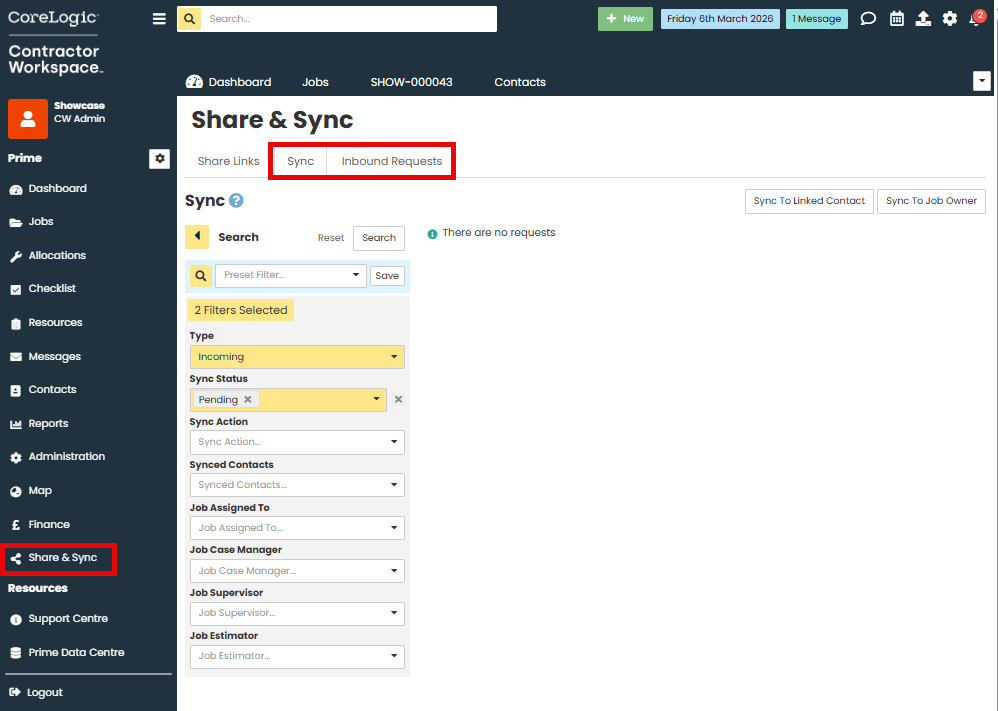
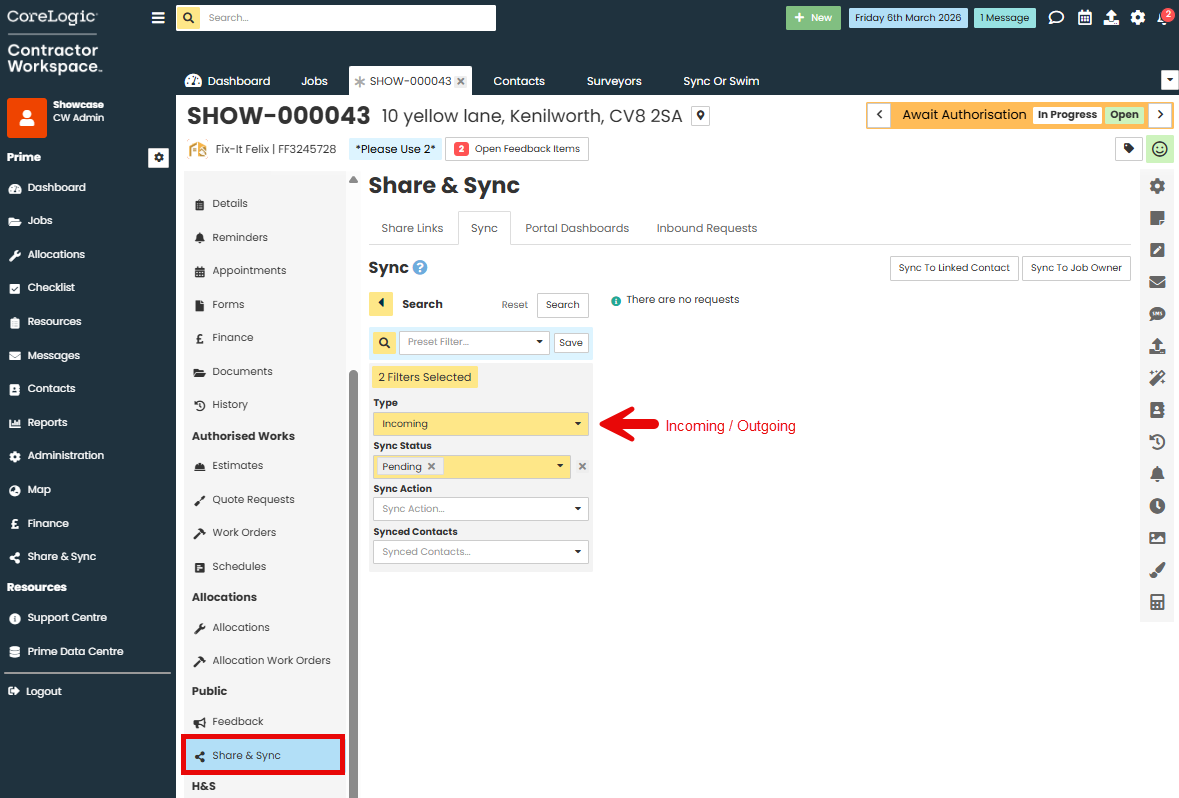
Once accessing a specific job, this will also have a Sync Requests specifically for that job where the items can be accepted/declined. Each company can also see both incoming and their outgoing requests.
Through the notification settings in Administration, users can also be set to receive checklist notifications when new requests are received on a job they are the Assigned, Case Manager or Supervisor, or you can nominate a specific user.

Was this article helpful?
That’s Great!
Thank you for your feedback
Sorry! We couldn't be helpful
Thank you for your feedback
Feedback sent
We appreciate your effort and will try to fix the article