13.2 Share Information Through Customer Job Portal. Version 1.0. Last Updated January 2026.
The Customer Job Portal provides access for a customer to view certain details of their Job. The information available to view in the Job portal is determined by your Company Administrator.
You can send a Job Portal link to a customer which will enable them to view upcoming appointments, share any documents and communicate directly with your team by adding notes.
Once you have created and sent your job portal link to your customer you can begin to share relevant information with them
Add Note for Customer
Add a Job Note into your job history using the pencil quick action on the right hand side of your job screen.
Enter the relevant notes or message within the Notes section.
Tick the 'Public' box to make this note visible from the job portal for your customer to see.

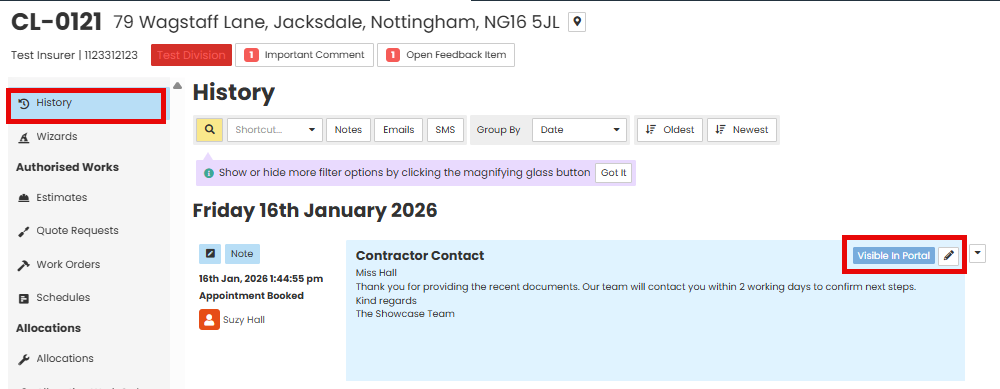
Note is added to the Job History with a 'Visible In Portal' tag.
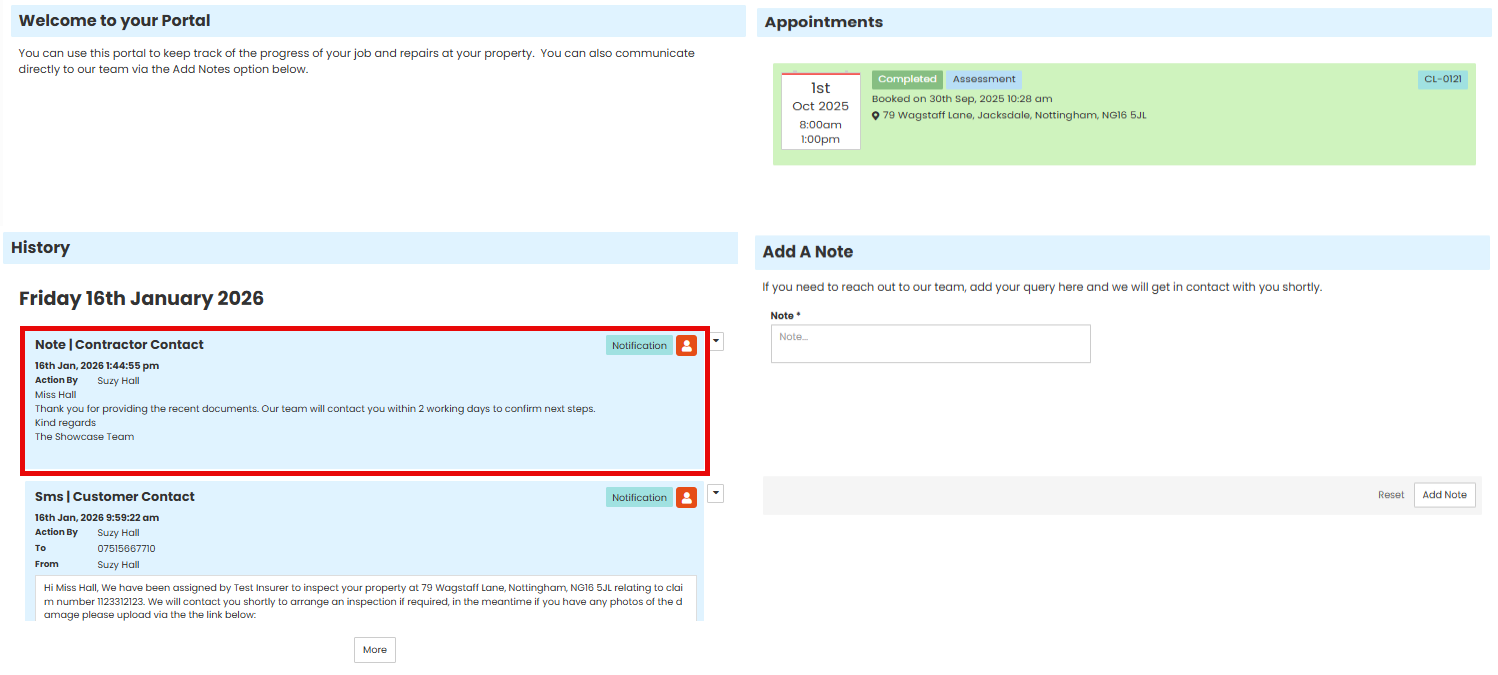
Note is also visible to the Customer within their Customer Portal.
Add Documents or Photos for Customer
Add Documents or Photos to a job using the Upload Document quick action on the right hand side of your screen.

Add the relevant documents or photos.
Tick the 'Public' box to have these Documents visible to the customer in the job portal.
Select Add Document to Upload Queue.

Document or photo will be added to 'Documents' within the Job with a 'Public' tag.

Document or Photo is also visible to the Customer within their Customer Portal.

Was this article helpful?
That’s Great!
Thank you for your feedback
Sorry! We couldn't be helpful
Thank you for your feedback
Feedback sent
We appreciate your effort and will try to fix the article