3.5 Completing a Job Wizard Within a Job. Version 1.0. Last updated January 2026
A Wizard provides prompts to guide a user through a specific process. Using the Wizards within your jobs can streamline your internal processes and make onboarding your staff easy. Wizards can be created by your Company Administrator. Multiple Wizards can be created for different processes within your company.
User can follow the below steps to start and complete a Job Wizard. In this example we are using a 'Triage Wizard'.
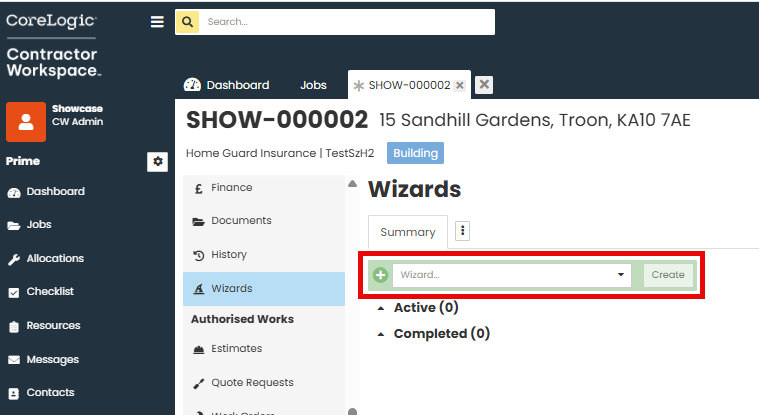
Navigate into the required job and then select the 'Wizards' option from the left hand side job menu.

Use the green plus field to select the Wizard template from the drop down, then click Create.
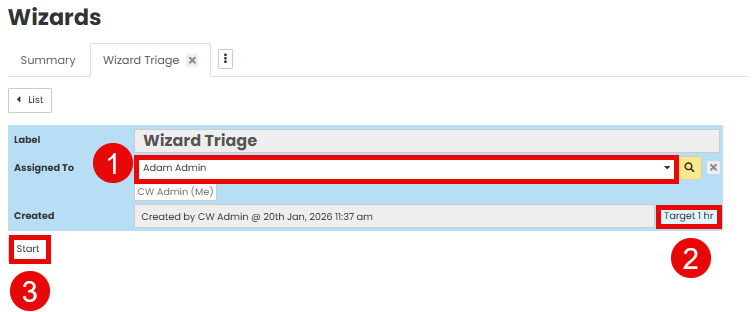
 You may 'Assign' the Wizard to an internal user if required.
  The Timeframe target is indicated on the right hand side.
  Click Start to begin completing the Wizard.
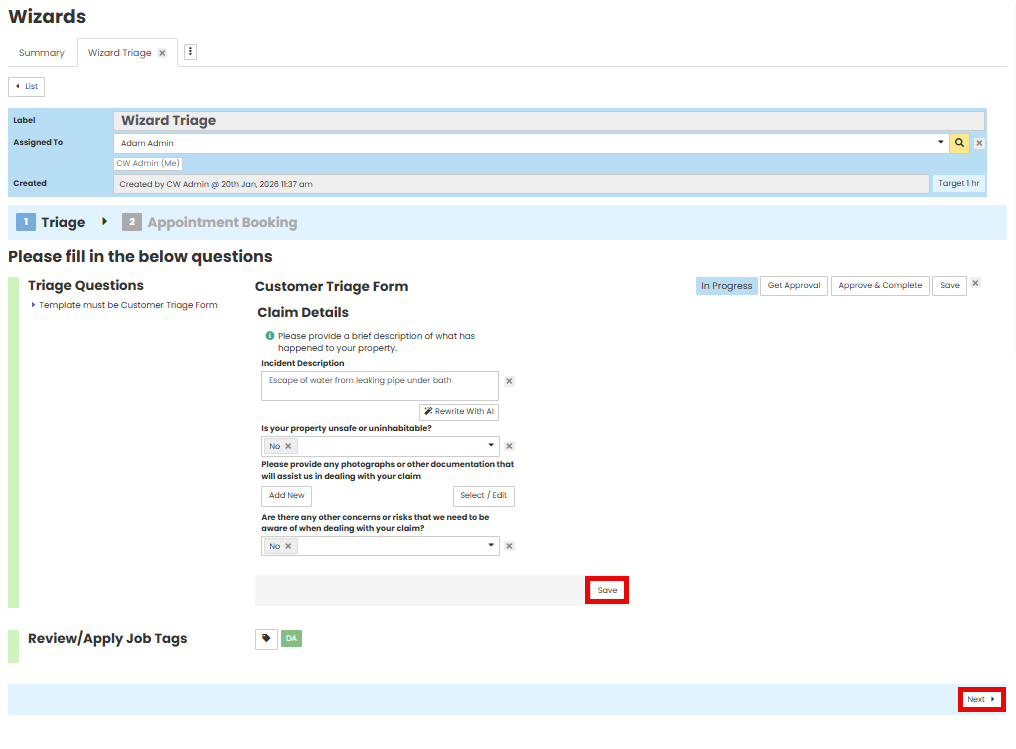
Complete each item in order down the page, they will go green on the left hand side once completed.
'Save' changes as you complete each section.
To move to the next page select 'Next'
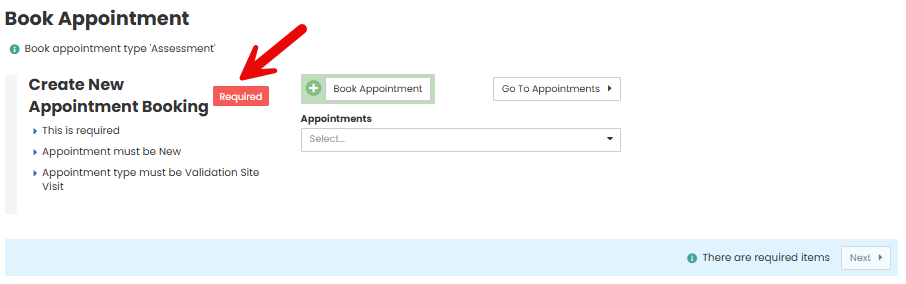
If an item is Required you will see the red tag next to the label. You will then also not be able to proceed through the wizard if a Required item is not complete.
Once all Steps and Items have been finished you will be able to click the 'Complete' button in the bottom right hand corner.
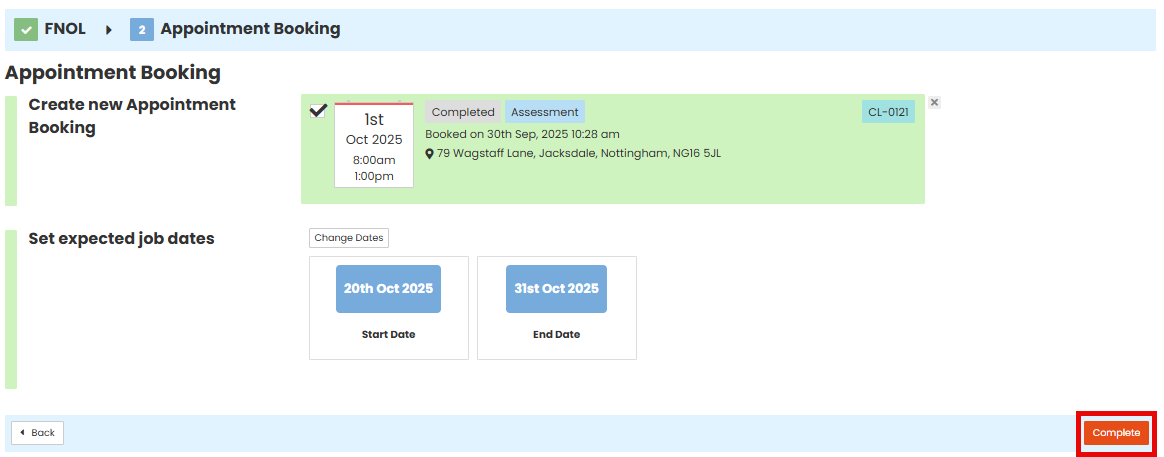
You will receive the 'Are you sure?' pop up, as once you complete the Wizard you cannot go back and edit.

You will see the completed Wizard in the wizard Summary screen. You will also be able to see how long it took the wizard to be completed.

Was this article helpful?
That’s Great!
Thank you for your feedback
Sorry! We couldn't be helpful
Thank you for your feedback
Feedback sent
We appreciate your effort and will try to fix the article