22.42 Create a Job Wizard. Version 1.0. Last updated January 2026.
Create a Job Wizard
You can create separate Wizard templates for different parts of your job process or different employee roles. Or you could have one Wizard for the whole job process from start to finish. To start building a template follow the below steps.
Navigate to the Administration menu . Then select the 'Wizard Template' option.
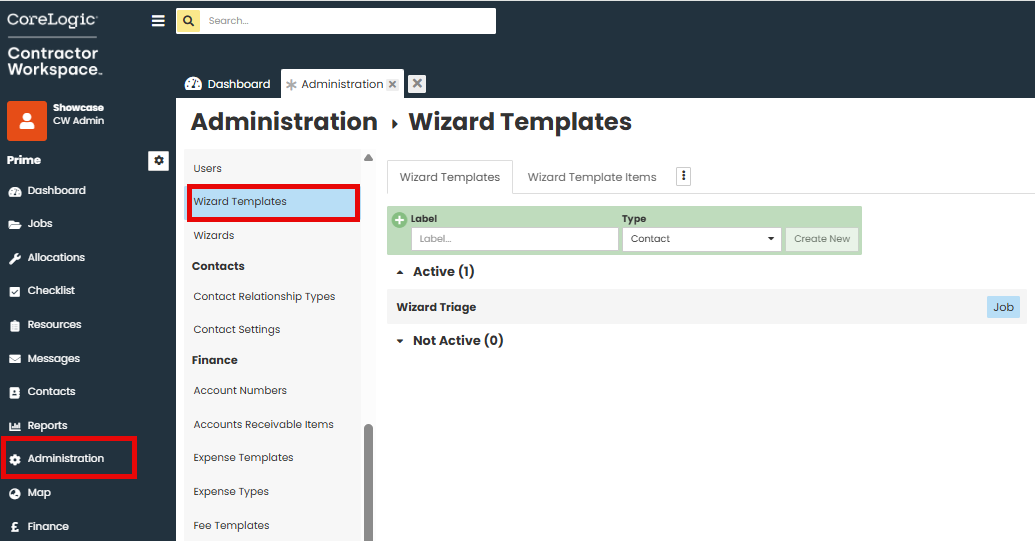
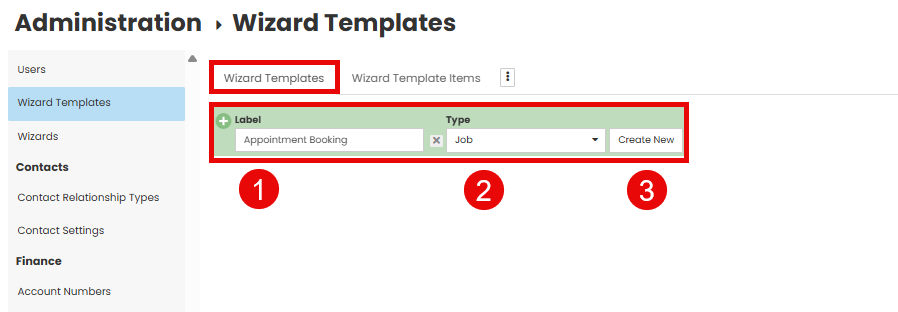
Select the Wizard Template Tab.
 Type in the desired label.
 Select Job from the Type drop down menu
 Click Create New
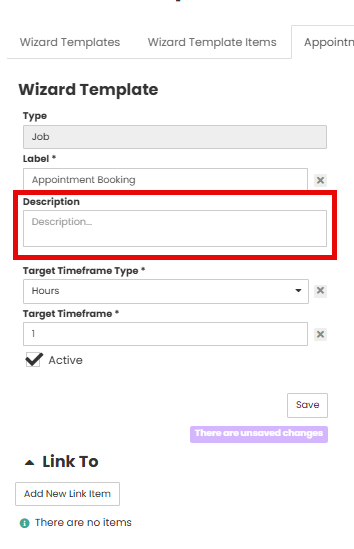
Add a description if required.
You can set a Timeframe for how long the wizard should be completed, this can be in Minutes, Hours, Days or Business Days. 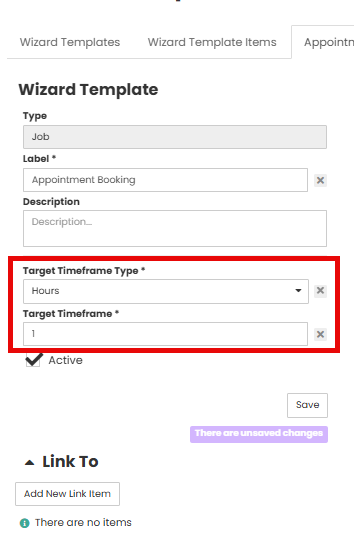
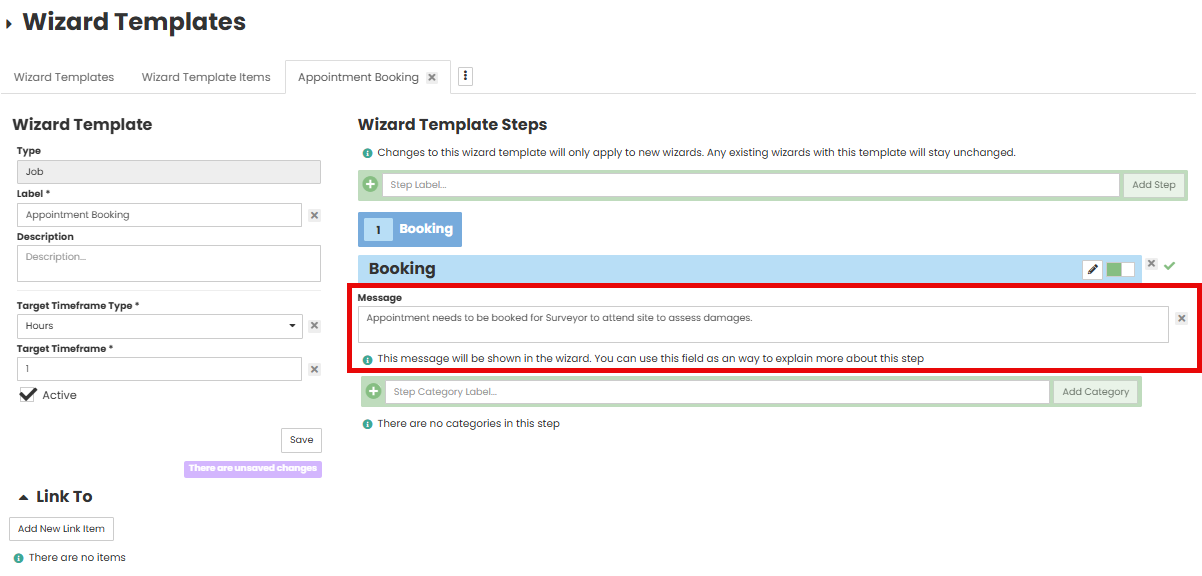
Create your first 'Step' by typing into the green plus field, then click the 'Add Step' button on the right. The Step is essentially a heading for each stage of the wizard.

You can add a 'Message' under the 'Step' you have now created. This will be shown to the user as they are completing the Wizard so is a good place for any instructions or information about the tasks they are completing.
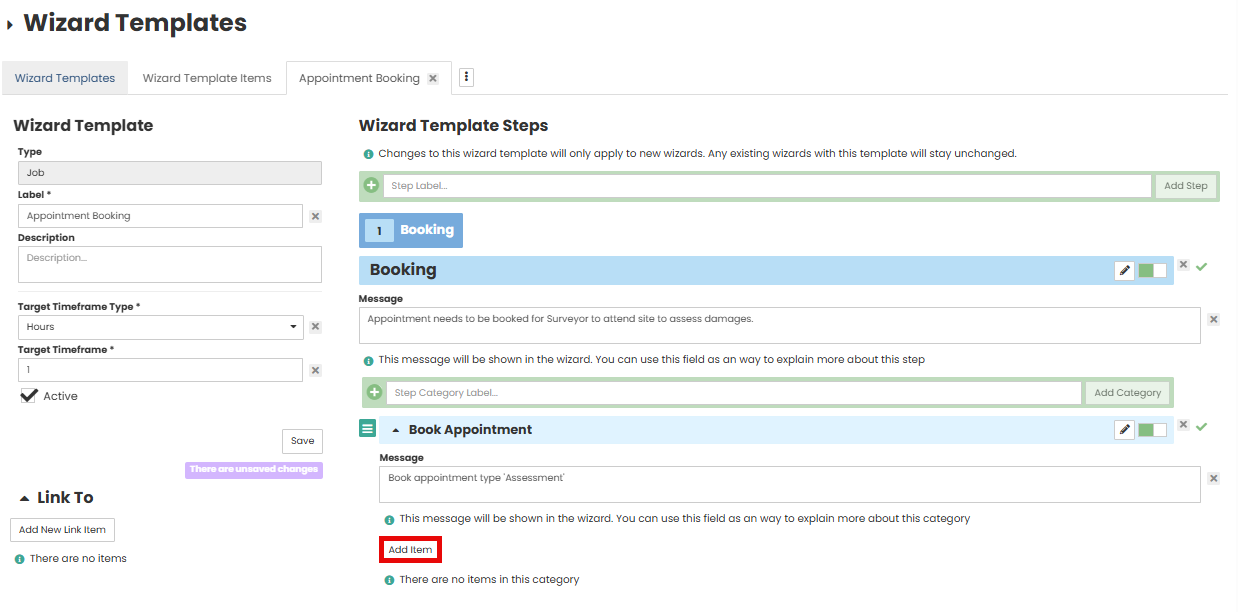
Create your Step Category Label by typing into the text field and clicking 'Add Category' on the right hand side. This will create a heading for the task you will add in next for the user to complete. e.g. 'Book Appointment' and then the task will be to add an Appointment.

Once you have added the Category Label you can add another Message. Another good place for instructions to the user completing the wizard.

Select 'Add Item' to select an existing item or to create a new item.
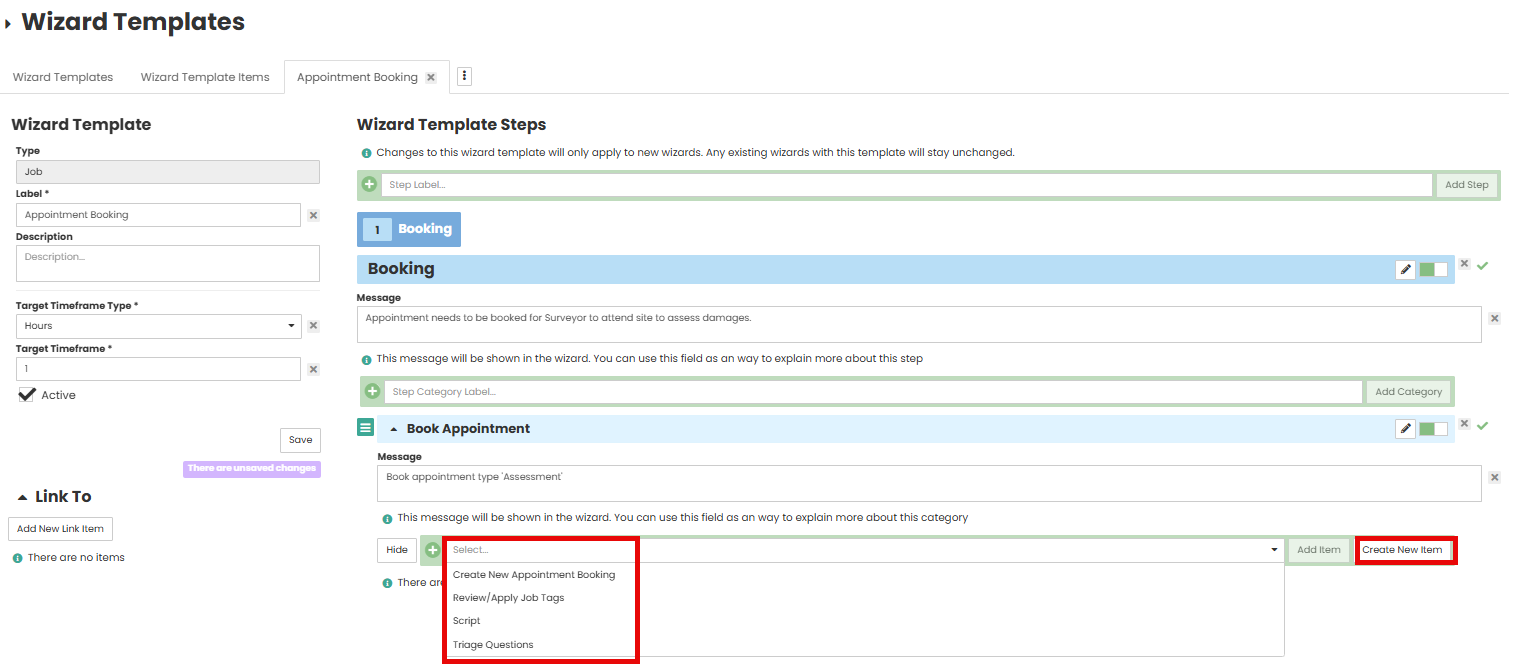
You may select an existing item already created, or you can click 'Create New Item' to create a new one.
Create a new Wizard Template Item by completing the fields in the pop up. Then Click Save at the bottom.
- Type in a Label
- The Wizard Type drop down should stay at 'Job'
- Wizard Item Type is where you can select the task they are going to complete, e.g. Appointment, Add Note, Site Form etc
- You can add a Description but this is not required
- You can use the tick box to make the item 'Required', this means the user can not progress through the wizard unless they complete the item.
- Add a Message, this is a good place for instructions to the user as to what or why they are completing a task.
- Tick the 'Active' box.
- Save changes

Once the Item is added use the down arrow on the left of the item Label to set defaults.
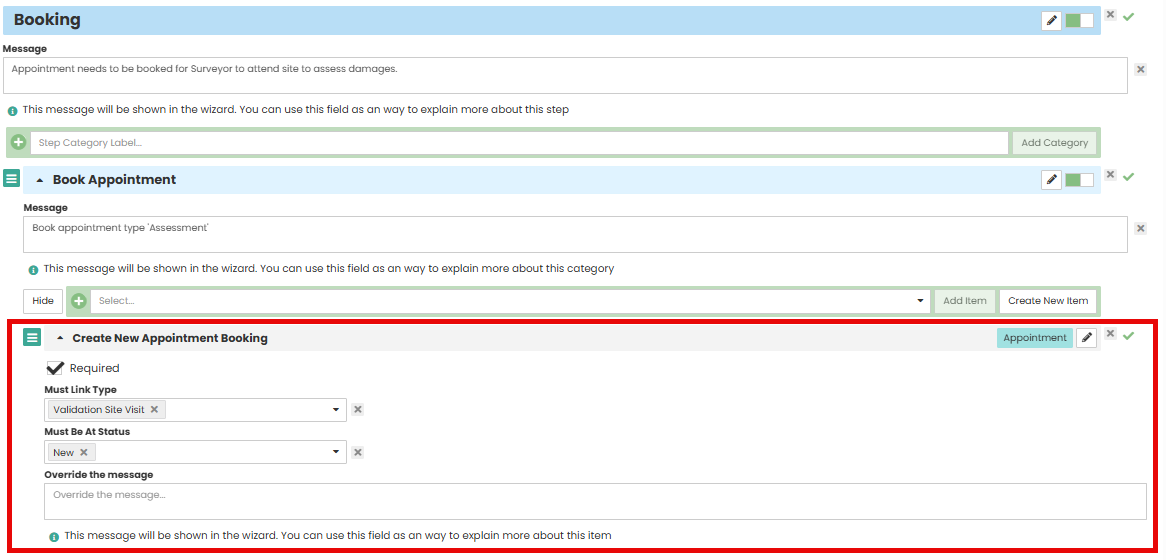
Repeat the steps above to add further 'Steps' and the 'Items' within them to keep building out your Wizard as required.
Was this article helpful?
That’s Great!
Thank you for your feedback
Sorry! We couldn't be helpful
Thank you for your feedback
Feedback sent
We appreciate your effort and will try to fix the article