20.1 Create a Loss schedule in a Job. Version 1.0. Last updated January 2026.
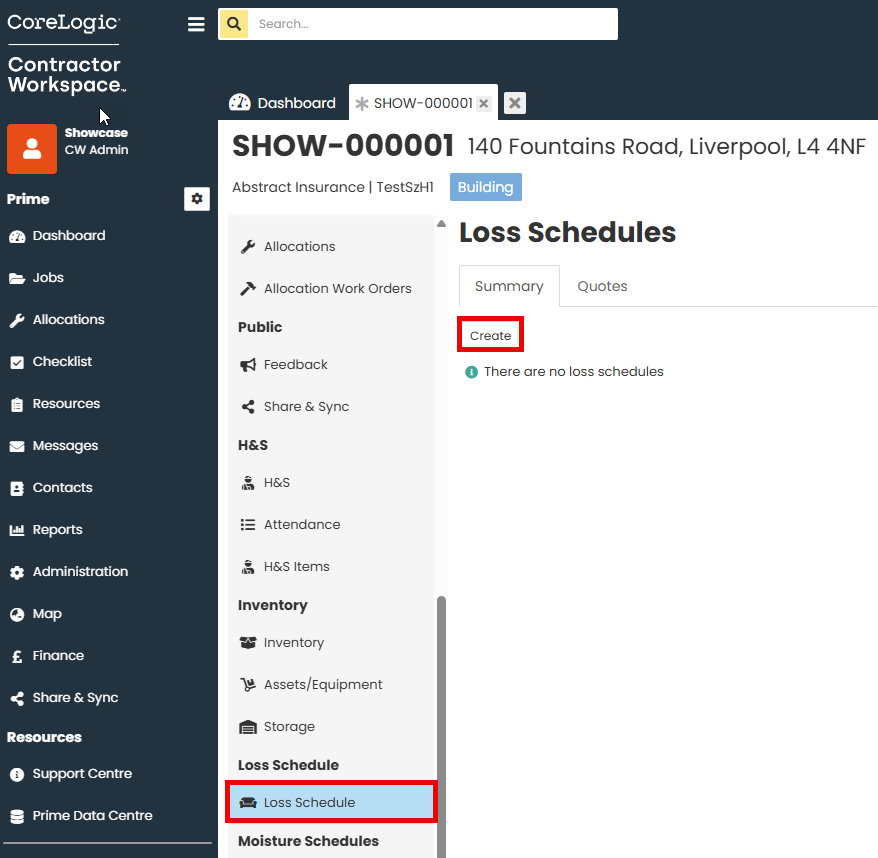
Open the required Job. Select Loss Schedule from the Job Menu.
Select Create.
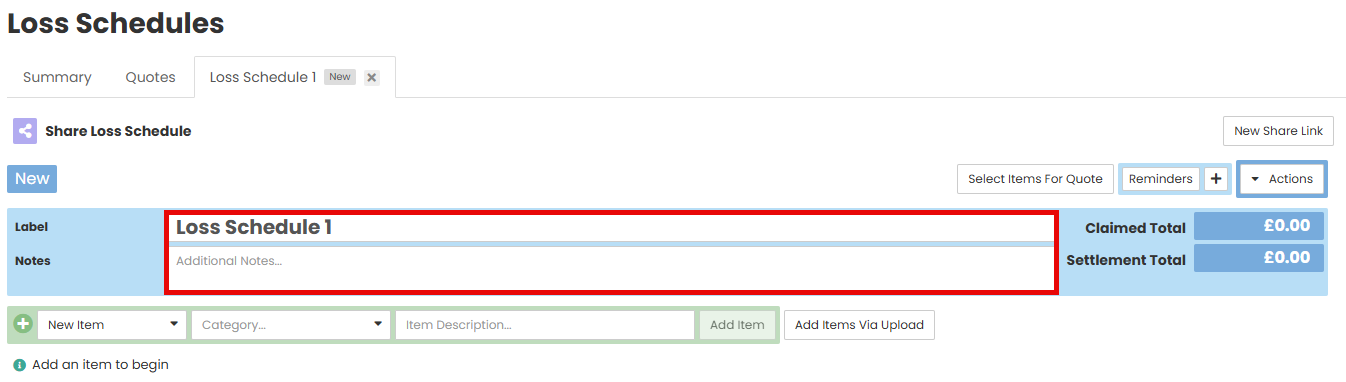
You may rename the loss schedule and add additional notes if required.
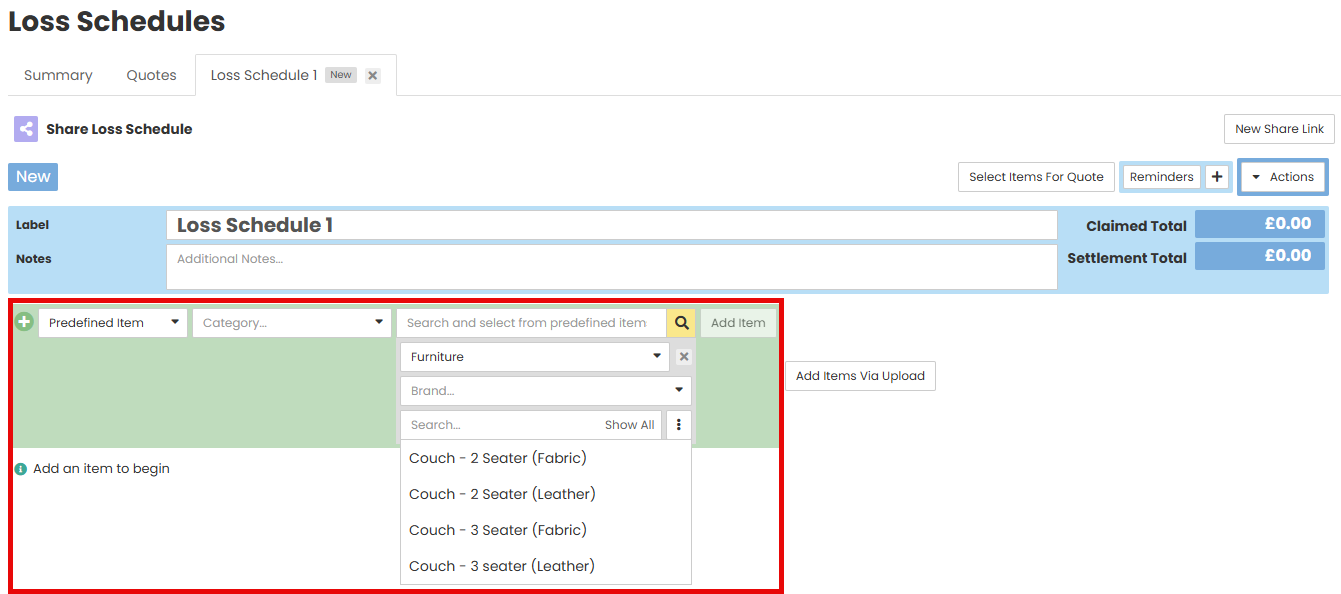
There are multiple ways you can add an item.
1. First is to create a New Item.
Select a category, type a description and Add Item.

2. You can also select from item templates, for commonly affected items. Select Predefined Item, search and select the item to add.
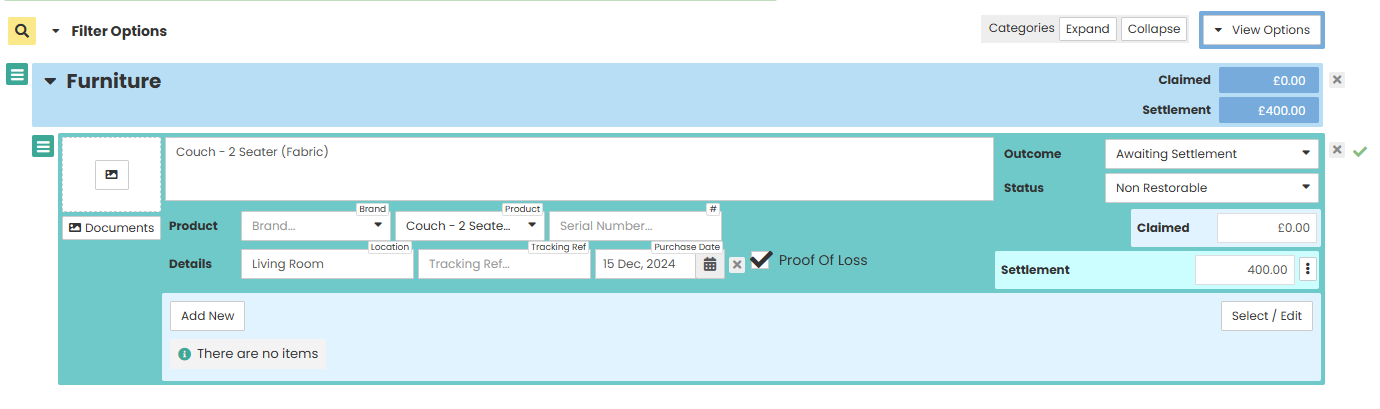
Once the item is added, you can add additional details such as purchase date, claim amount, settlement type etc.
3. The third way to add items is via a file. Select Add Items Via Upload

Upload your file.

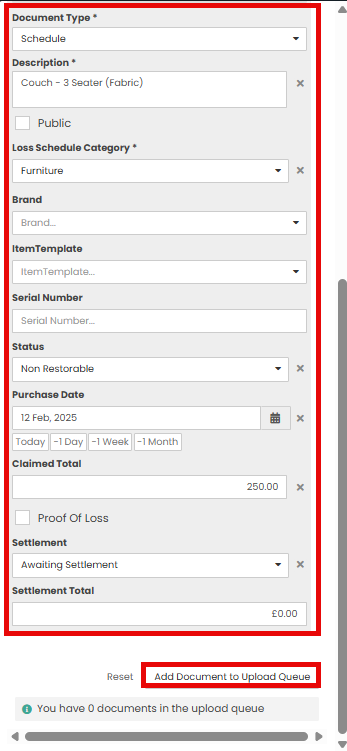
Enter the details of the item.
Upload the document to the upload queue. The Loss Schedule will update when the item is loaded.
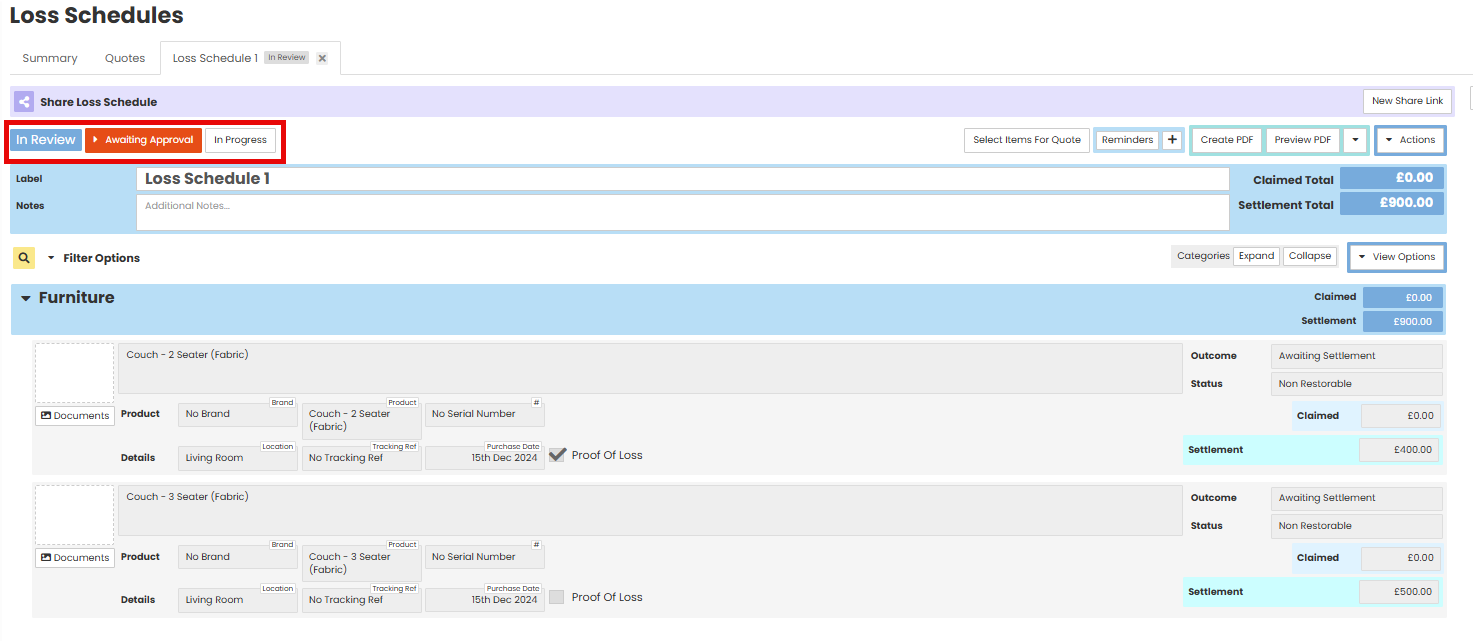
You may change the status of the Loss Scedule
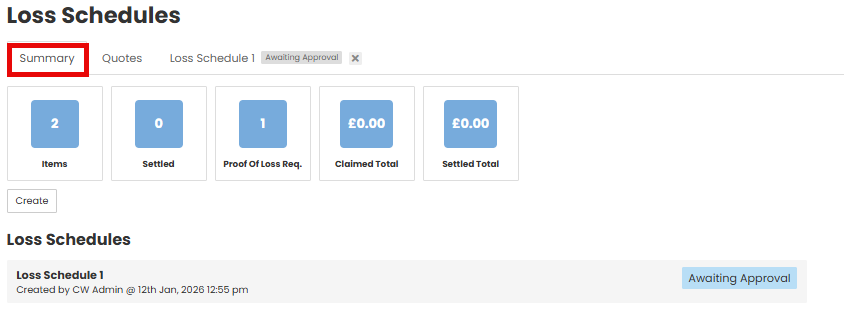
The summary tab will show all loss schedules and the current status within the job.
Was this article helpful?
That’s Great!
Thank you for your feedback
Sorry! We couldn't be helpful
Thank you for your feedback
Feedback sent
We appreciate your effort and will try to fix the article