21.1 Create Moisture Schedule. Version 1.0. Last updated December 2025
Scroll to the bottom of your job menu and select Moisture Schedules. Click Create to start a new moisture schedule

The Moisture Schedule label can be edited as required.

You can add notes, edit the status and assign to an individual if required.

Add a category to begin. A category is usually the room or area you are conducting your testing in.
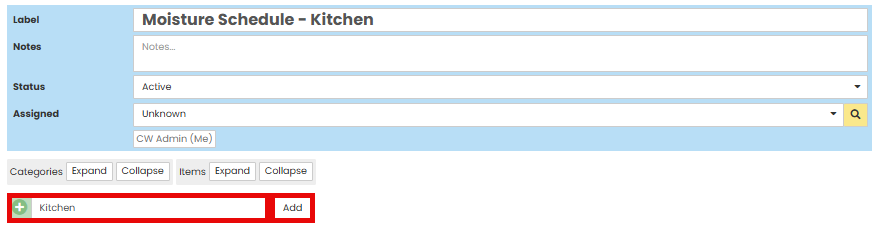
Within the category you can add notes and room dimensions. Select New Item

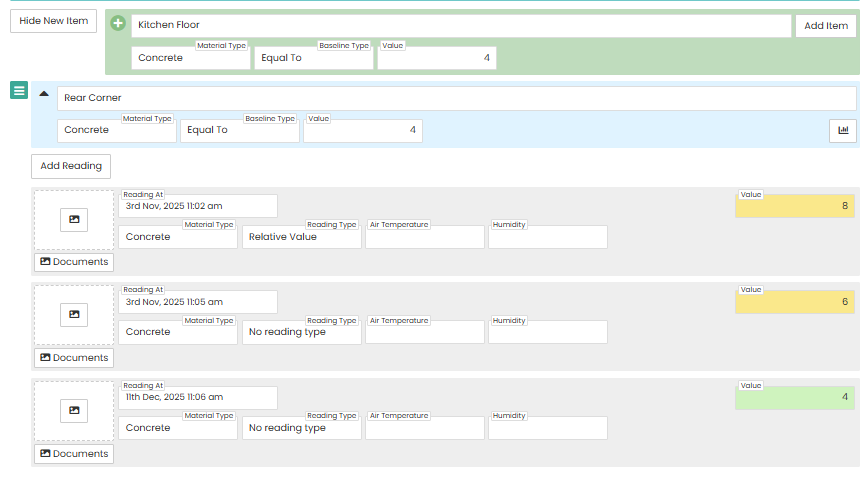
Enter the specific area of the room you will be testing. Then select select the material and baseline and Add item.

The item details will show as a line with 'Add Item' button underneath. You may add more specific descriptions of the reading area if required. Click Add Reading to record your results.

You can adjust the date of the reading using the calendar icon, select the material type from the drop down menu and enter the number from the reading. You may also upload documents or photos.
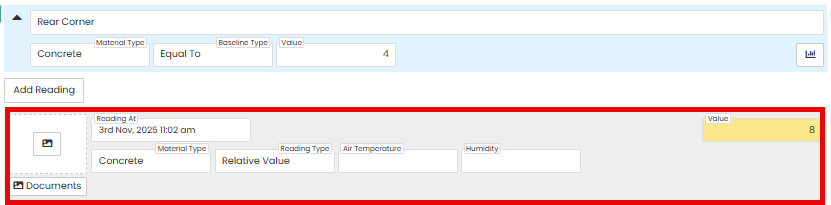
The number field will change colour depending on what you have made in tour Baseline.
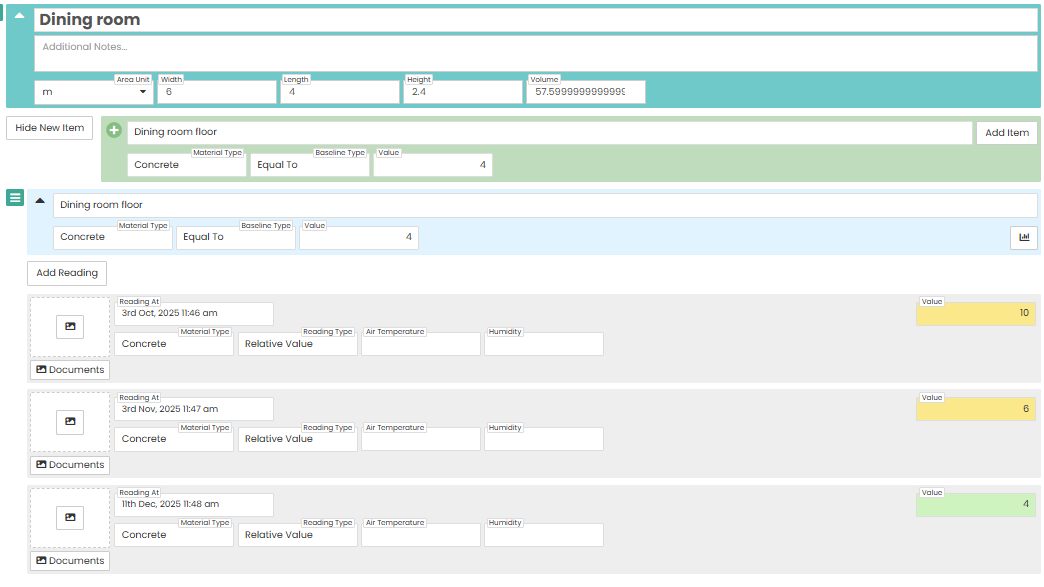
If you wish to record readings from multiple rooms repeat the steps above to create another category and area for readings.
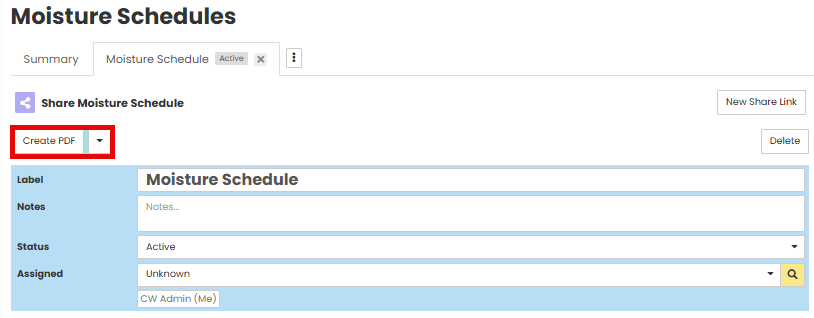
Once all readings have been recorded use the 'Create PDF' button at the top of the page to create a PDF document of the moisture schedule.
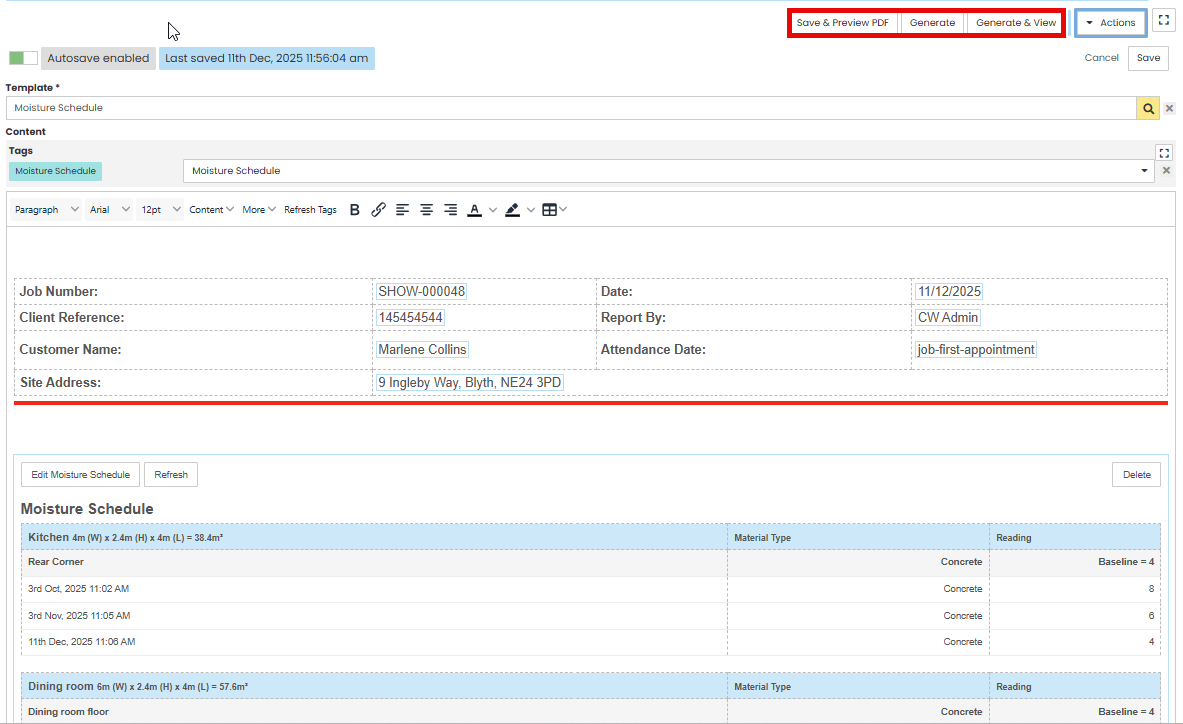
You will be directed to the 'Forms' section of the job. Search for Moisture schedule template. Review the template, Save & Preview PDF, and then 'Generate ' once happy with it.
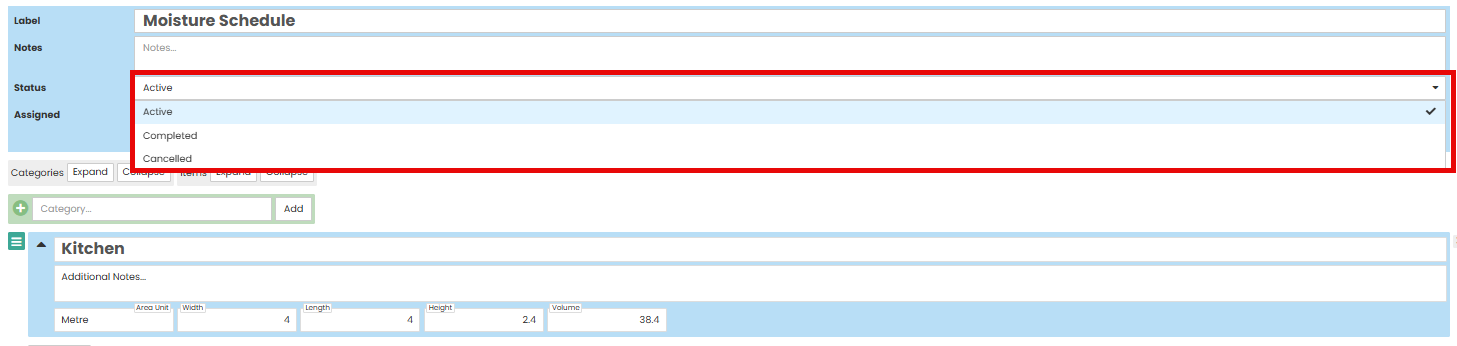
Once the PDF is generated you will be directed back to the moisture schedule. Here you can us the 'Active' drop down menu to change the status of the schedule through to completed.
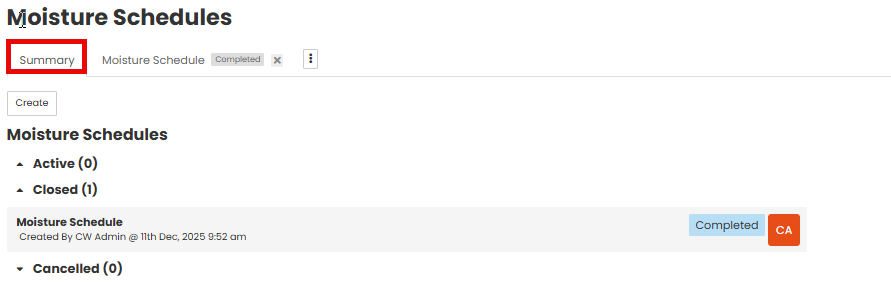
When you go back to the 'Summary' tab you will see the schedule in the category corresponding to the status you have changed it to.
Was this article helpful?
That’s Great!
Thank you for your feedback
Sorry! We couldn't be helpful
Thank you for your feedback
Feedback sent
We appreciate your effort and will try to fix the article