22.1 Appointment Settings. Version 1.0. Last updated July 2025.
Appointment Settings
To access the Appointment settings, navigate to ‘Administration’ in the main Menu.
A blade will open on the left side next to the main menu. Select ‘Appointment Settings.’
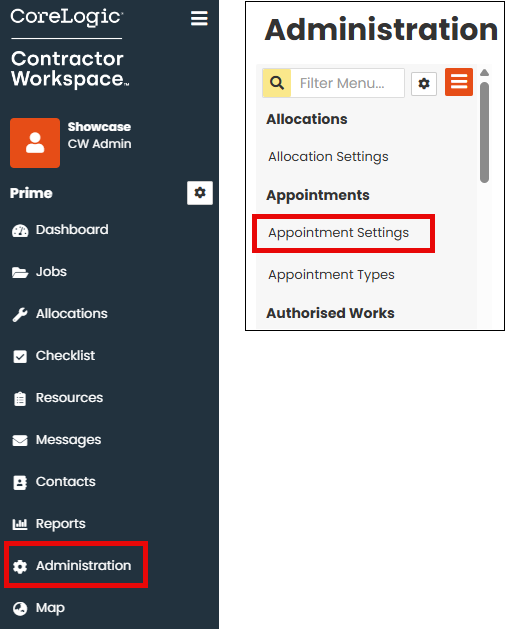
You will see two tabs at the top of the screen ‘Settings’ and ‘Auto Bookings.’

Settings allows you to amend the items that are visible for users on the appointment booking system.
Auto Booking Settings allows the policy holder to book appointments themselves via appointment share links.
Settings
In the 'Settings’ tab, you will see the Appointment settings section.
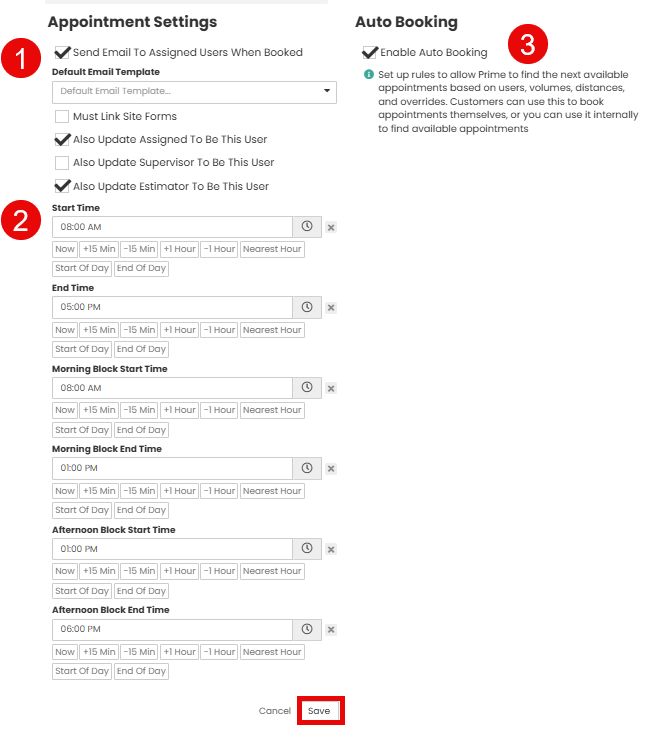
 You can use the check boxes to switch on or switch off features such as sending email to assigned people once the appointment has been booked, or ensuring an appointment has a Site Form linked. The check boxes for assigned, supervisor and estimator, mean that when you book the appointment (and select an internal user) they will automatically inherit these roles on the job.
 In the timing sections you can set the start time and end time of appointments. This is usually set to the company hours, the first and last available appointments of the day. You can set also use morning block start/end times for things such as inspections and other appointments that require 2-3hrs appointments. This can also be changed while booking the appointment. You can set company hours as blocks within the config settings.
 To enable the ‘Auto Booking’ feature, you will need to tick the 'Enable Auto Booking' check box. The auto booking feature allows the customer to book appointments themselves or can be used internally to book appointments based on users availability, current Job volumes and distance.
Note – Only when auto booking is available are you able to make amendments on the auto booking tab.
Once all changes have been made, click ‘Save.’
Auto Booking Settings
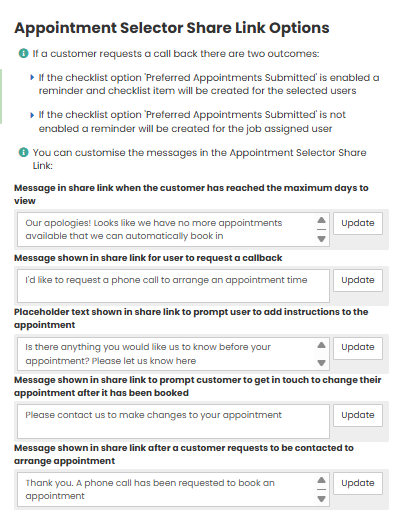
When auto booking is enabled, a share link is sent to the Customer to book appointments themselves.
Appointment selector section allows you to set up the text that the Customer will see when booking appointments. For example, if they wish to request a call back when booking their appointment, they will select the message ‘I would like to request a call back.’
Was this article helpful?
That’s Great!
Thank you for your feedback
Sorry! We couldn't be helpful
Thank you for your feedback
Feedback sent
We appreciate your effort and will try to fix the article