1.4 Using the Checklist. Version 1.0. Last updated January 2026.
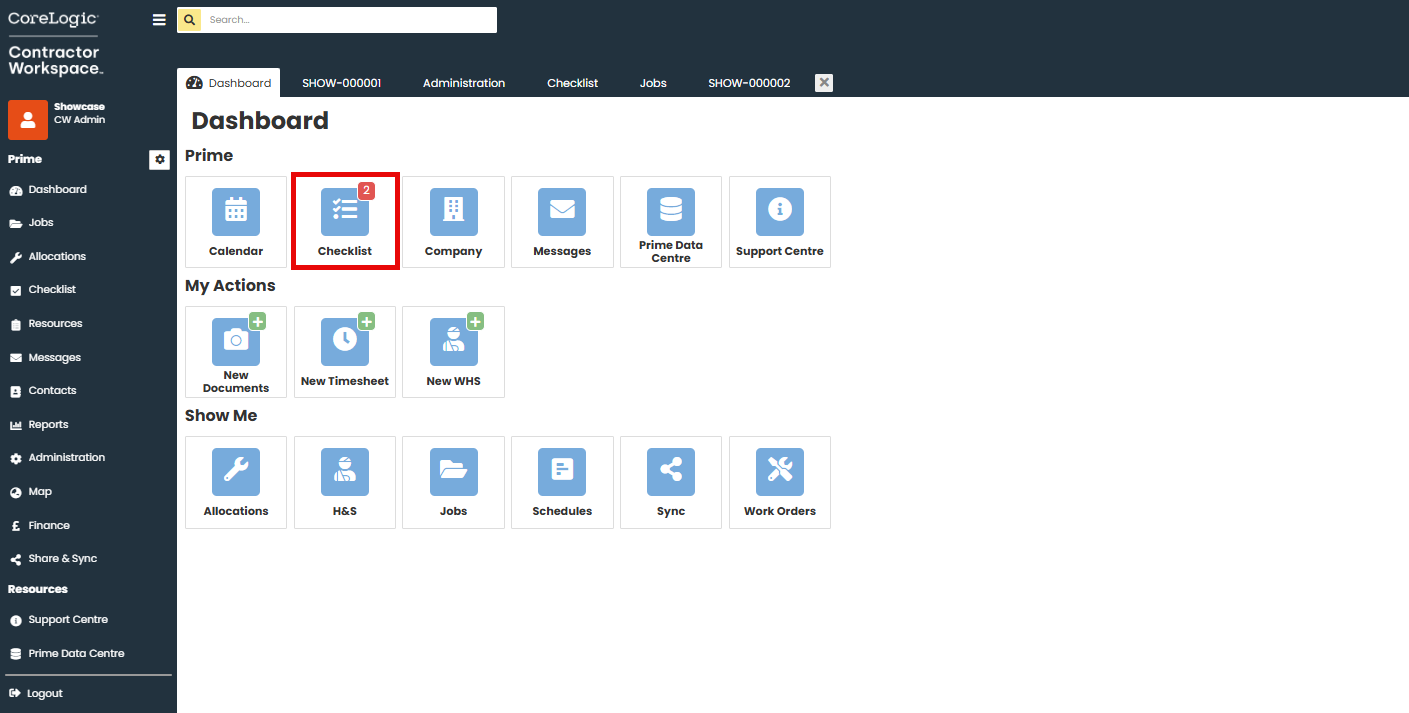
The Checklist is located on your Dashboard and is the central location for all of your reminders, notifications and appointments across all of your jobs as a user.
From the Dashboard select the Checklist icon.
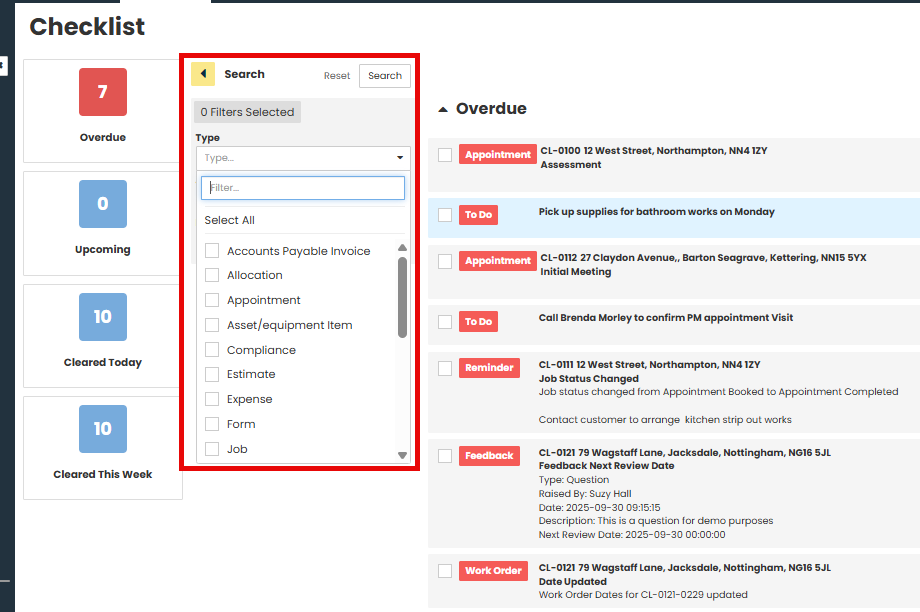
Your Checklist items will appear in a list and will be grouped as Overdue or upcoming, in date order.

The type of items on your checklist are controlled through your Company Administration settings and can include reminders, job notifications such as status changes, KPI's, Finance, Forms, Work Orders, appointments and sync notifications.
The Type is identified on the left hand side of the checklist item and will either be Blue or red in colour depending if the item is overdue or upcoming.

You can clear the item from your checklist by ticking the box on the left hand site. Alternatively, if you click the checklist item it will take you to that particular job so you can action as required and then clear it from the job.

When you click on the Checklist item it will take you into that section of the job it relates to. For example, below I have clicked on the checklist item 'Reminder' and I have gone straight to the Reminders within that job. I can now easily action this item as required and then clear the reminder so it no longer appears as overdue, and will not be on the Checklist any more.

You can use the Filter options at the top of the Checklist to only view certain types of items or items for a particular job only.
Was this article helpful?
That’s Great!
Thank you for your feedback
Sorry! We couldn't be helpful
Thank you for your feedback
Feedback sent
We appreciate your effort and will try to fix the article