22.38 Customised User Dashboards. Version 1.0. Last Updated December 2025
Customised User Dashboards
Dashboards can be created with different setup of widgets to display to users key sets of information related to the Company and Jobs.
The Following widgets are available:
| Widget | Description |
| User Appointments | Shows Appointments booked for the current signed in user - Show by Date, Overdue, or Upcoming |
| User Reminders | Shows Appointments booked for the current signed in user - Show by Date, Overdue, or Upcoming |
| KPI Breakdown | Shows KPIs based on Overdue, Due Today, Due Tomorrow, Due this Week, After this Week with options to filter by Client, Division and Region. |
| Work Order Dates | Work Order Dates - Start or End Date, shown as Due Today, This Week, This Month, Next Month, No Date |
| Job Dates | Job Dates - Start or End Date, shown as Due Today, This Week, This Month, Next Month, No Date |
| Checklist | Shows the users Checklist within the Dashboard |
| User Job Status Breakdown | Shows the table of Jobs assigned to the current logged in user with the Status breakdown and jobs list table |
| Company Job Status Breakdown | Shows the table of Jobs for the Company with the Status breakdown and jobs list table |
| Accounts Payable Invoices | Shows Accounts Payable Invoices in age brackets based on Due Date (0-7, 8-14, 15-30, 30+). Option to show by "Overdue and Not Paid, Pending Approval, or Under Investigation" |
| Accounts Receivable Invoices | Shows Accounts Receivable Invoices in age brackets based on Due Date (0-7, 8-14, 15-30, 30+). Option to show by "Overdue and Not Paid, Invoiced to Date" |
| Allocations | Displays Allocations grouped either by Status or Allocation Type with Filters for Status, Type and Created Date |
| Expenses | Shows Expenses in age brackets based on Due Date (0-7, 8-14, 15-30, 30+). Option to show by "Overdue and Not Paid, Pending Approval, or Under Investigation" |
| Jobs | Shows number of jobs grouped by Status, Region, Region Type, Division, Company, Client and filter for Created Date |
| Jobs Registered | Number of Jobs Registered - Today, This Week, This Month, Last Month, This Year |
| Jobs Received By Client | Table breakdown of Jobs Registered by Client |
| Timesheets | Number of Timesheet Hours recorded for the current signed in user - Today, This Week, This Month, Last Month. |
Go to Administration. Select Dashboards. Add Dashboard

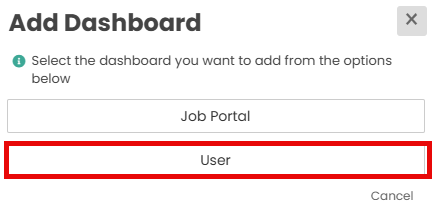
Select 'User' from the Pop up
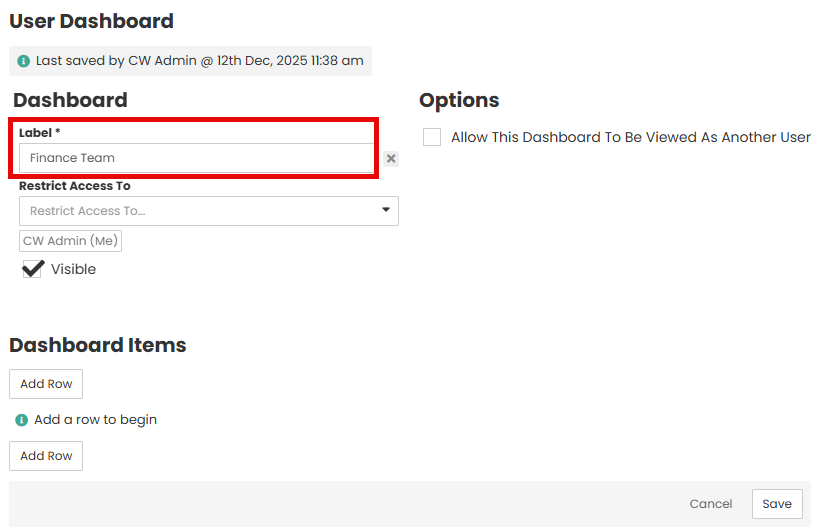
Add a label for your Dashboard. This is the name of the Dashboard
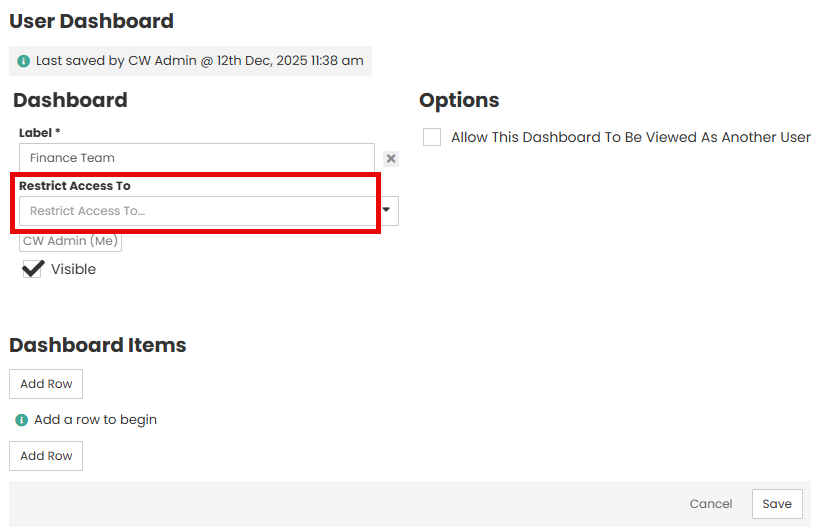
You can set Access restrictions for only certain users.
You can give access to users to view this Dashboard as a different user i.e. a team Leader Can be given access to their users that they manage.

To add widgets to the Dashboard, click 'Add Row' and then you can select the applicable widget from the drop down
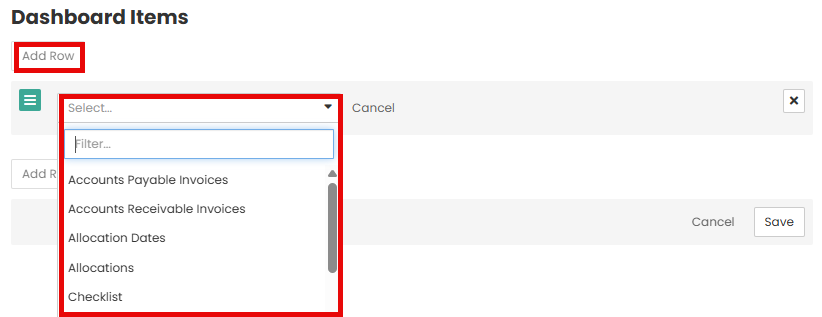
Some widgets have two column displays meaning the columns can be viewed side by side on the dashboard

Some widgets will have additional filters that can be set by default, and also checkboxes to only show results for the current logged in user.

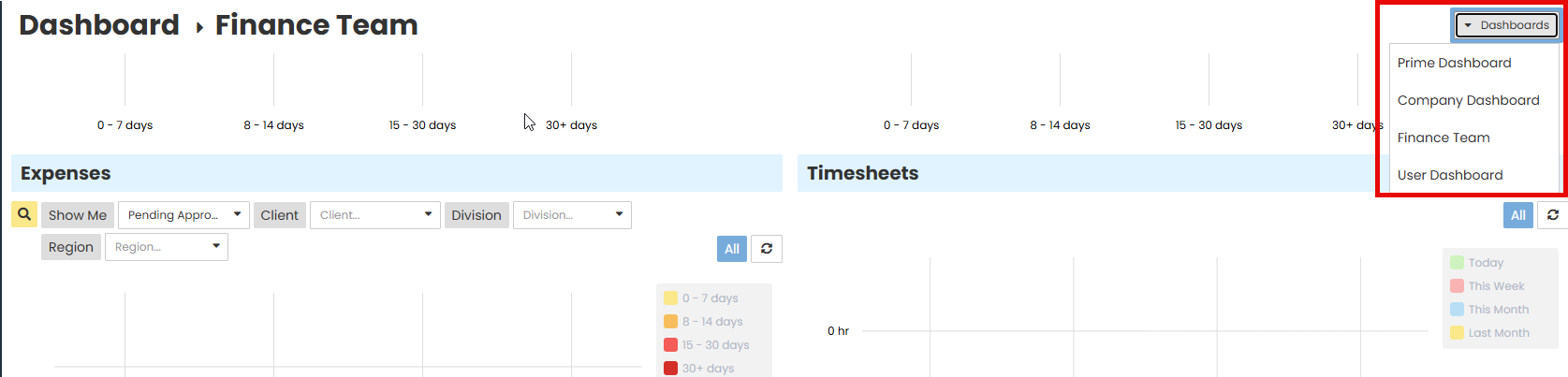
Once the dashboards have been created, users can switch between their available Dashboards
Was this article helpful?
That’s Great!
Thank you for your feedback
Sorry! We couldn't be helpful
Thank you for your feedback
Feedback sent
We appreciate your effort and will try to fix the article