17.2 Add Inventory Items to resources. Version 1.0. Last updated December 2025
The Inventory allows you to add your Inventory items into Contractor Workspace through Resources. With this you can manage your stock levels and use Inventory items in your Jobs.
Navigate to 'Resources' from the main menu on the left hand side of the screen. Then select 'Inventory'.

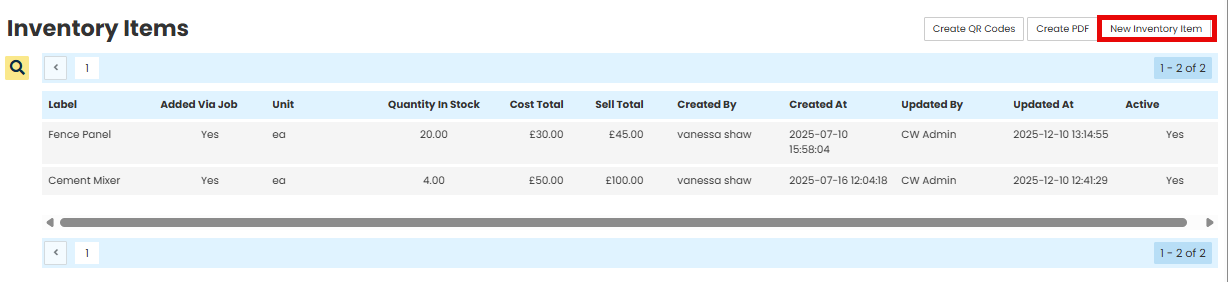
Add a new Inventory item by clicking the 'New Inventory Item' button in the top right-hand corner.
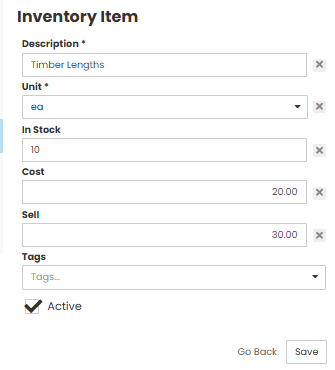
Complete the Inventory Item fields and select ‘Save.’
Description – Description of the inventory item.
Unit - Select the Unit from the drop down.
In Stock - Enter the amount of the item you have in the 'In Stock' field.
Cost - Cost value of the item.
Sell - Sell value of the item.
Tags - Use the drop down to select any 'Tags' applicable.
Tick the Active box so the item can be used on jobs.
The page will refresh and take you back to the Inventory Items screen. Here you will see the new items you have added.

Was this article helpful?
That’s Great!
Thank you for your feedback
Sorry! We couldn't be helpful
Thank you for your feedback
Feedback sent
We appreciate your effort and will try to fix the article