16.5 Create AR Invoice from Estimate. Version 1.0. Last updated June 2025
To create an AR invoice from Estimates, you need to have an Estimate and a Work Order set up on the Job.
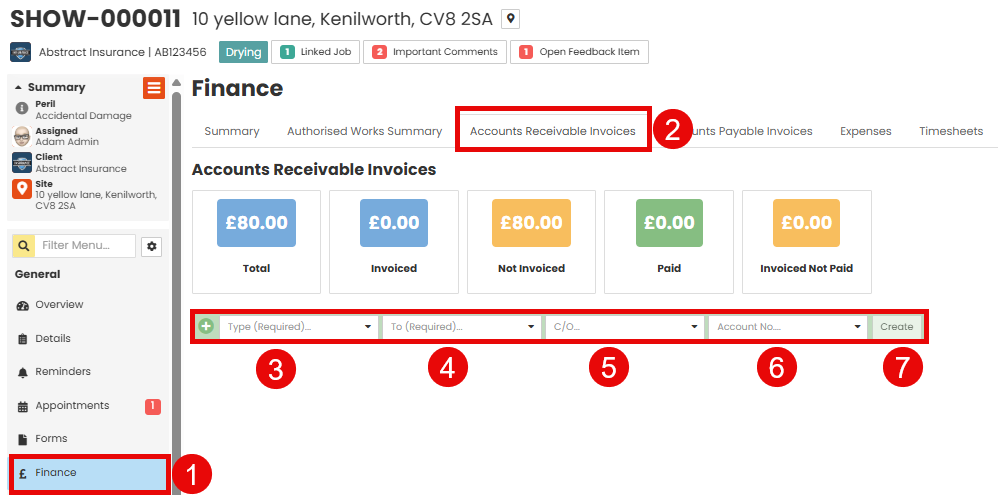
 Go to ‘Finance’ in the Job Menu.
 Select ‘Accounts Receivable’ from the tab.
 In the ‘Type’ list select ‘Authorised Works’
 Select who the invoice will be going to.
 Within C/O option you can include another party. You can leave this field empty if it's not required.
 Select your account number
 Click ‘Create.’
You will now be able to add all items to include in you AR Invoice.
 Details you've entered will pull through here. You can edit these details if required

 The invoice number is automatically generated.
 From the ‘Items’ drop down select ‘Estimates.’
 From the ‘Select from Authorised works’ drop down, find the Estimate cost you would like to invoice and check the tick box.
 You can choose to add as one item, or split material/labour. Select Add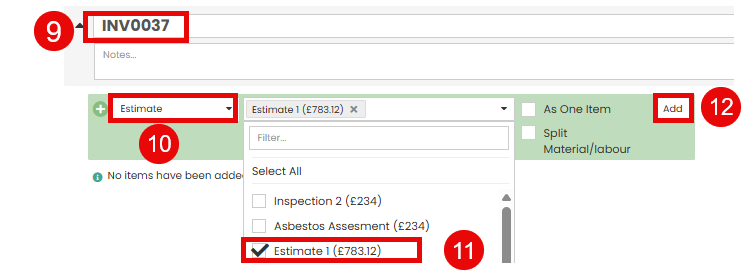
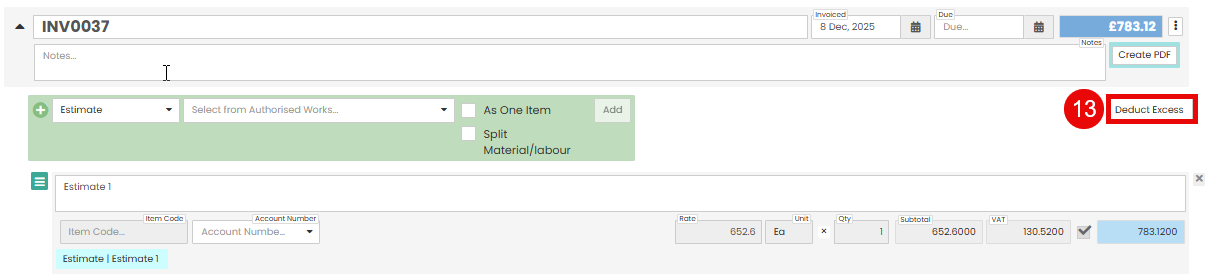
If there is excess to collect on the job and want it to be deducted, you can select ‘Deduct Excess,’ and this charge will be removed from the invoice.
Note: It pulls the excess amount from the job excess field if set prior to invoicing.
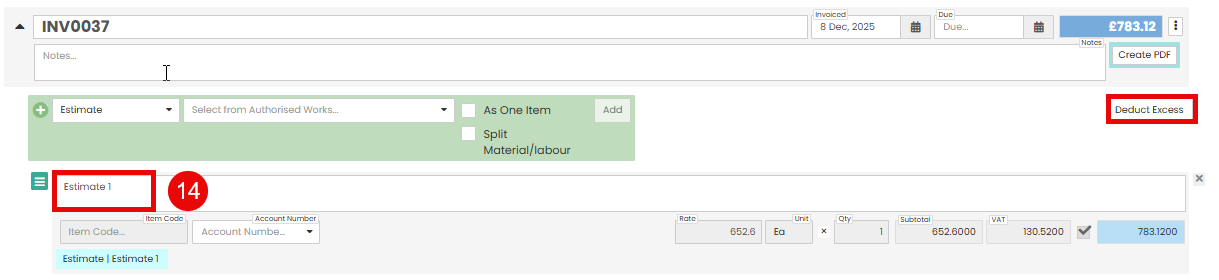
 You can change the name of the invoice if required
 You can set due date dependant on client invoice requirements.
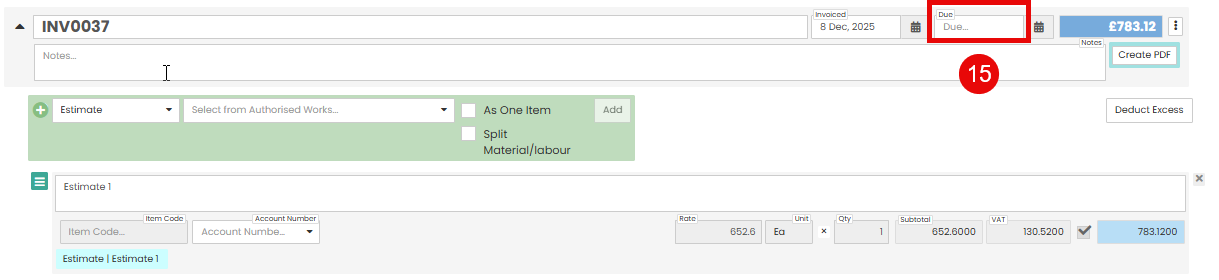
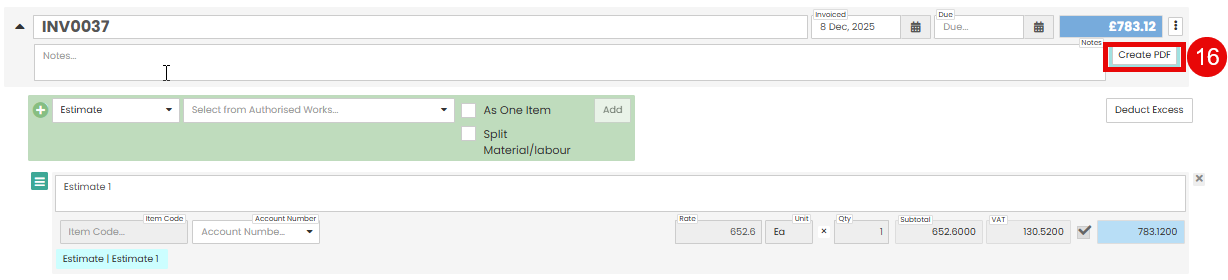
 Select ‘Create PDF.’
 In the template section, choose the invoice template you would like to use.

You can make any amendments within the template such as payment terms, or adding additional information/instructions.

 If you click the ‘Edit Accounts Receivable Invoice’ button, you can select and deselect fields you would like visible on your invoice.

 You can save and preview your invoice to check all details are displayed correctly.

When your invoice is ready click ‘Generate, or Generate and View.’


The invoice status will show as 'Pending'
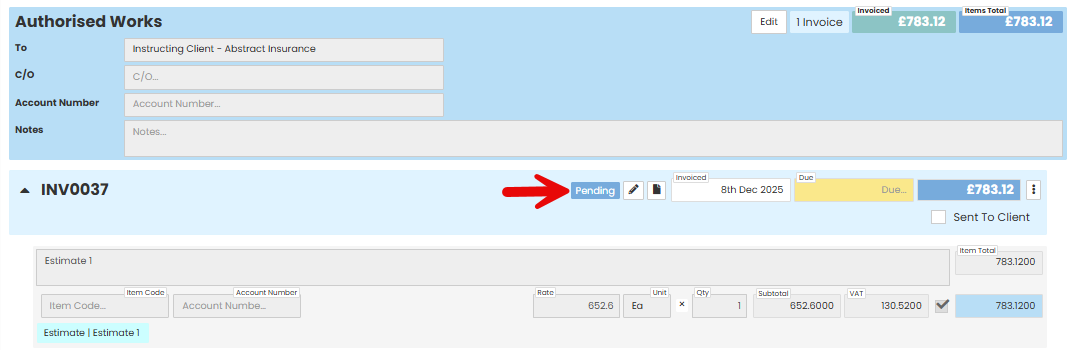
You can update the status using the pencil icon
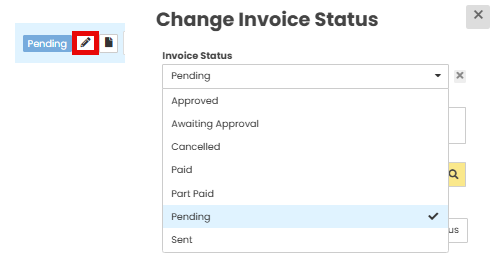
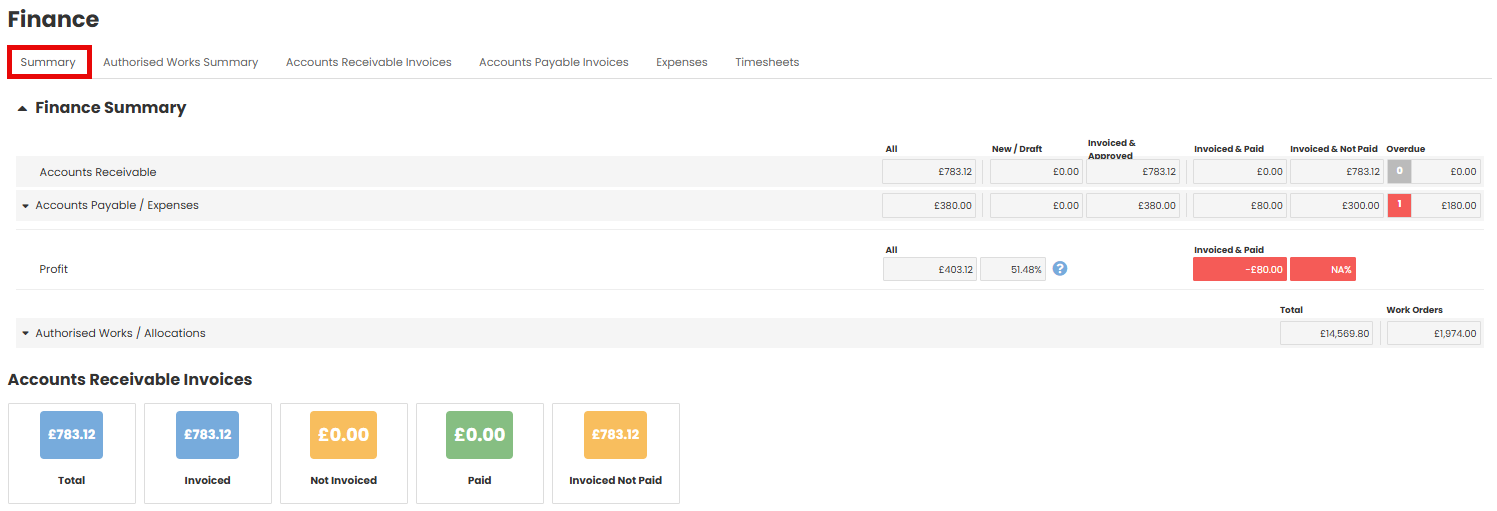
Invoice status is visible in the Finance Summary tab
Was this article helpful?
That’s Great!
Thank you for your feedback
Sorry! We couldn't be helpful
Thank you for your feedback
Feedback sent
We appreciate your effort and will try to fix the article