16.8 Add Payment Split To Authorised Works AR Invoices
Add A Payment Split To Authorised Works AR Invoices
This article will take you through the process of creating 'Progress Invoices' based off a percentage of the authorised works Estimate value.
Go to the Finance tab in the job you need to create the invoice against
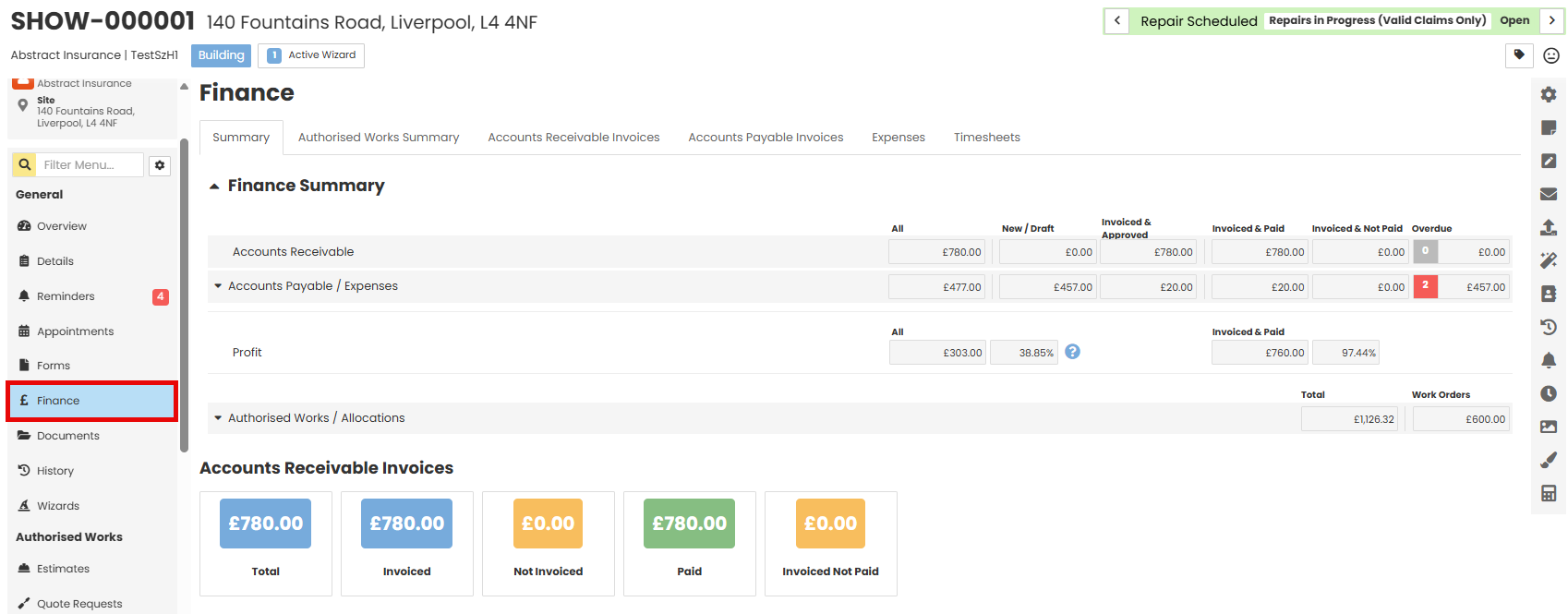
Go to the Accounts Receivable Invoices tab.
Use the green panel drop downs to create a new invoice

- Type (Required) – what the invoice is for (Note - Authorised Works will allow you to bring in the details for an authorised estimate on that job).
- To (Required) – Who the invoice will be addressed to. Anyone assigned on the job will be in the list to select from, Customer, Client etc.
- co/.. – Care of option is available, you can choose anyone assigned on the job.
- Account No. – these will link back to your accounting software and categorise your invoices.
Once you have made your selections click the Create button.
On the next screen you will be able to create your invoice details.
If you have chosen ‘Authorised Works’ as the type you will be able to select the estimate you want to invoice out and it will bring the price in for you.
Chose the Estimate from the drop down and select Add
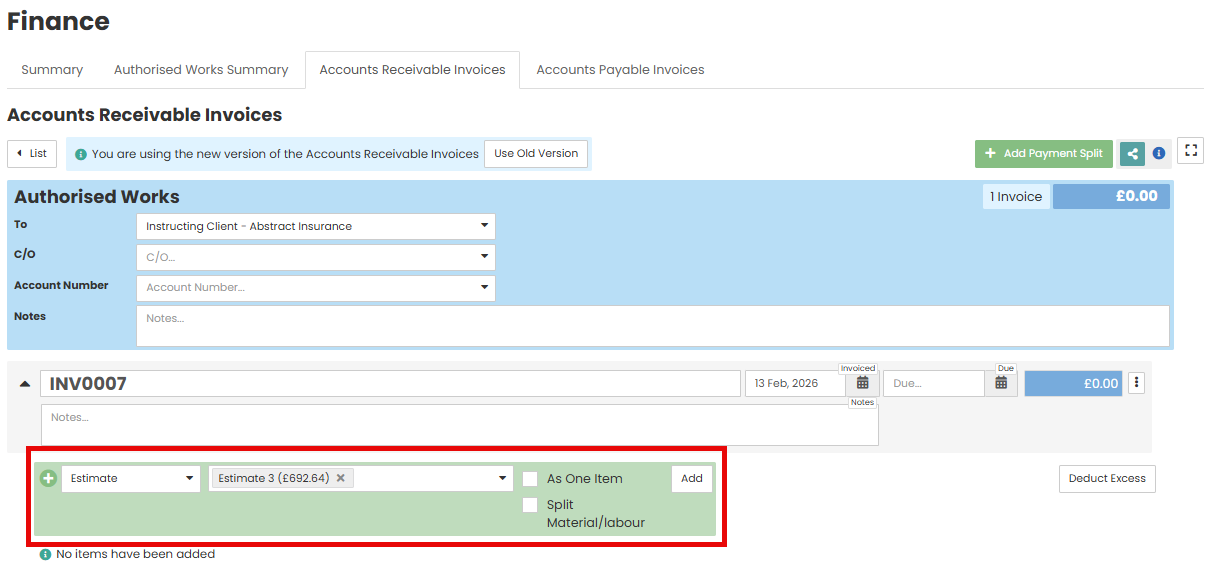
You will now have a line item. You can edit the Description if required, but the price will be locked as per the estimate.
Select Add Payment Split on the right hand side

There will be second invoice appear below.

Select % to open a pop up.
Change the Payment % amount to how much you wish to make that invoice. Or, change the Invoice Amount and the Payment % will auto update.
You will see a green tick when this has updated successfully.

Use the date fields to select when the invoice is due. 
Click Create PDF to generate your invoice like you would any other.

Once you click Create PDF you will be taken to the Forms section of the job. You will be able to select what template you want to use to generate your invoice as a PDF document to distribute as required.
Note - a default template might be set by your company administrator
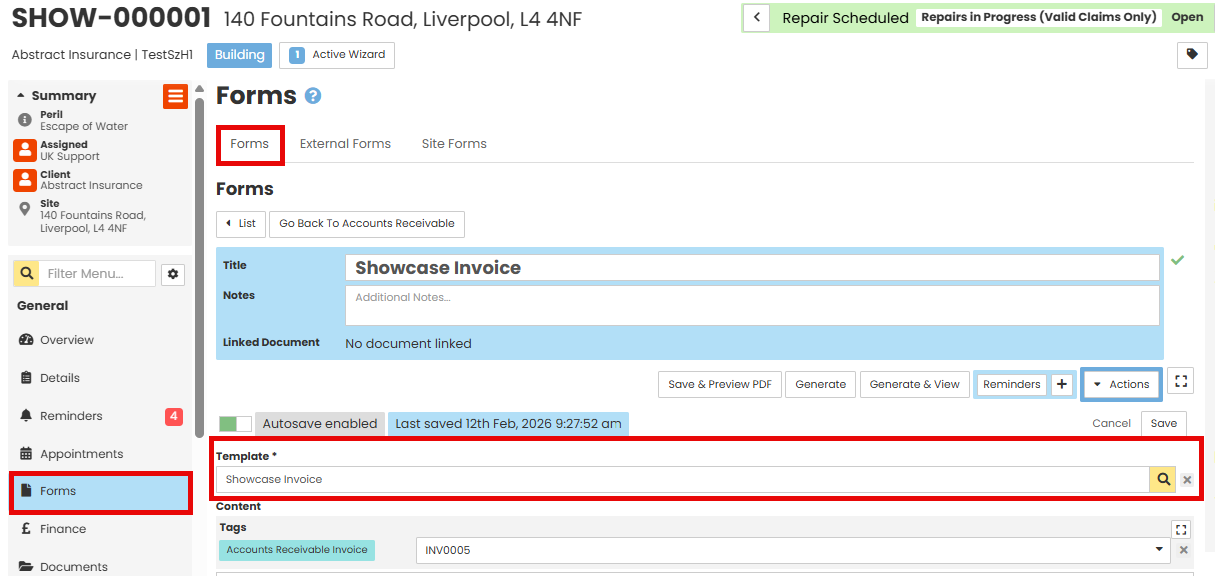
You can edit what information is visible on the invoice by selecting the Edit Accounts Receivables Invoice button, a pop up box will appear with check boxes to select what is shown. Click Update to confirm your selection.
Once you are happy with how the form looks select the Generate button at the top of the screen. Generate and View will open a preview of the form too.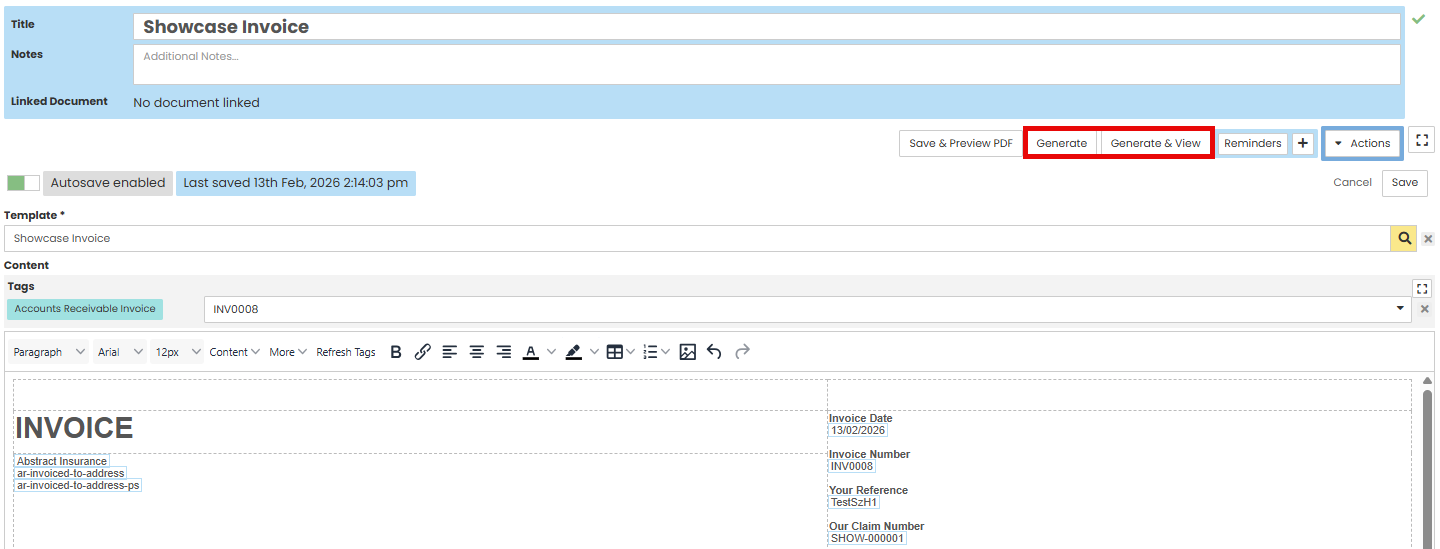
When you generate the PDF version of the invoice, the Total section will have your overall total and then below will be the payment split you enetered and show that amount as 'due'

You now have a generated invoice that you would treat like any other. Update the status accordingly.
You can then invoice the remainder in one invoice or you can select the Add Payment Split button again to create another invoice so the remaining amount is paid over multiple invoices.

The invoice will now appear in a list on the Accounts Receivable Invoices tab and be included in the value summaries.
Was this article helpful?
That’s Great!
Thank you for your feedback
Sorry! We couldn't be helpful
Thank you for your feedback
Feedback sent
We appreciate your effort and will try to fix the article