22.2 Allocation Settings. Version 1.0. Last updated August 2025.
Allocation Settings
Allocations setting allows changes to the pricing and the margins of allocations. You can build line items in the settings or within the allocations.
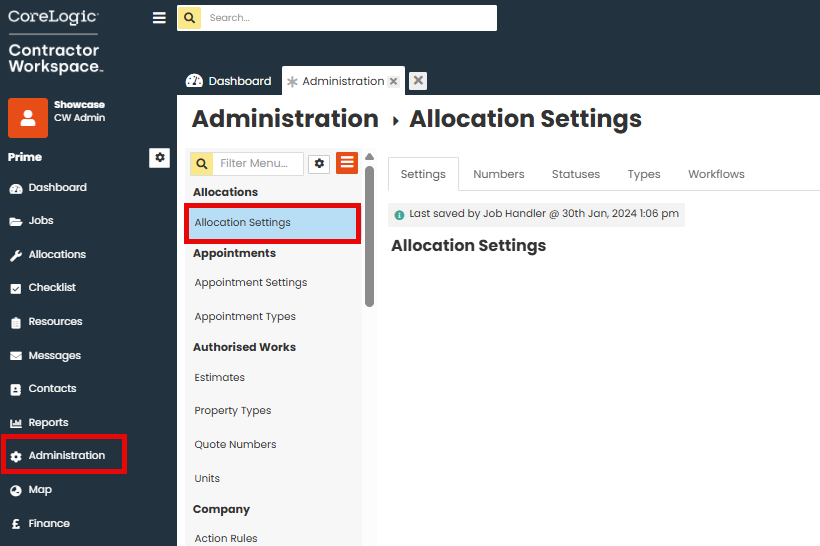
Go to Administration.
Under Allocations, click on Allocation Settings.
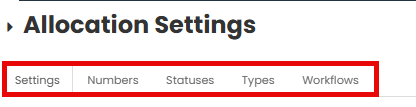
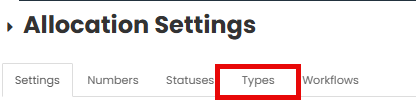
You will see four tabs at the top of the screen ‘Settings,’ ‘Numbers,’ Statuses,’ ‘Types’ and Workflows.
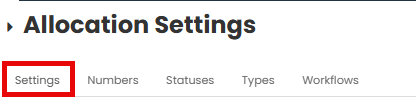
Settings Tab
In the ‘Settings’ tab, you can amend the amend pricing and margins. You can link site forms and choose default tags.
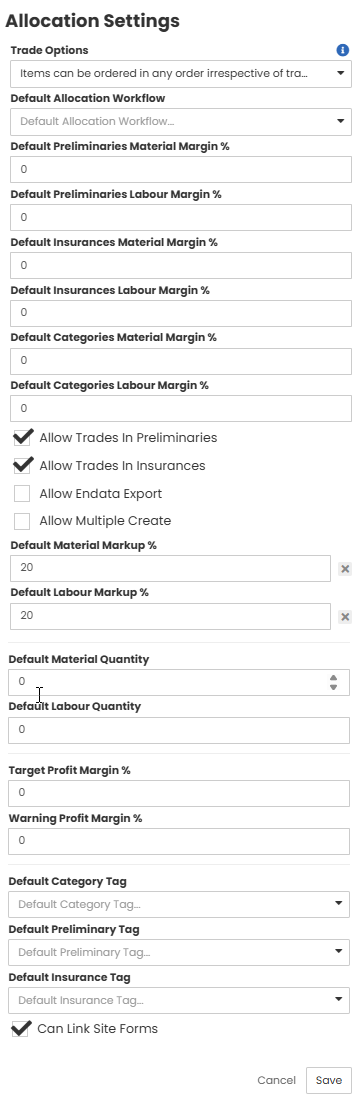
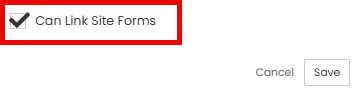
You can choose to select link site forms to new allocations created by selecting the relevant tick box.
Numbers Tab
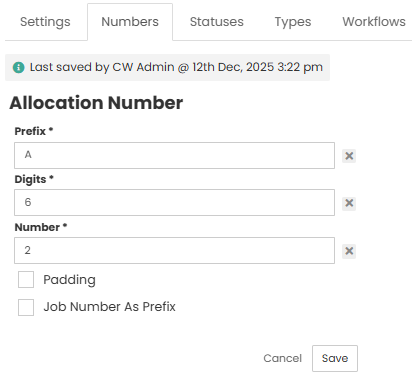
The ‘Numbers’ tab you can set how the Allocation numbers appear.

In this section you can change the prefix for the Allocations and choose how may digits long, you want the automatically generated number to be. For example, based on the below, the Allocation number will be A-000038.
Statuses Tab
The 'Status' tab allows you to activate or deactivate the predefined status options within allocations.
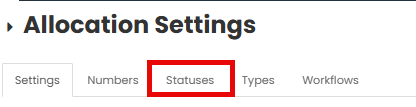
In this section you can also create new statuses by selecting ‘Create Status.’
Note - Once a status has been created, they cannot be deleted.
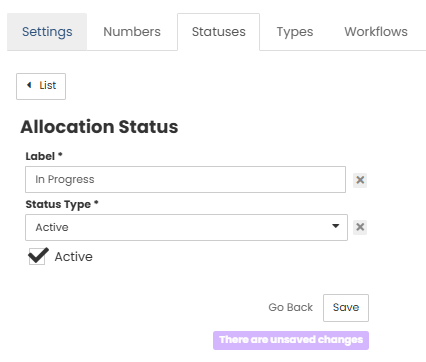
If you want to edit or deactivate a status, click on it to open. You can choose to rename the Status by changing the name in ‘Label’ or deselect the ‘Active’ tick box. Then click ‘Save.’
Types Tab
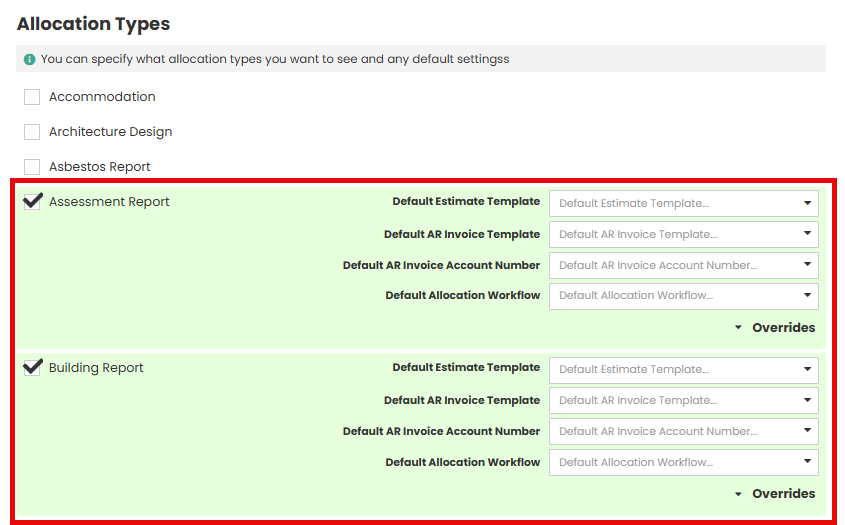
In the ‘Types’ section, you have pre-defined allocation types which have been built into the system. To turn them on, you need to tick the ones you want to Active or deselect to make inactive.
In this example we can see ‘Building Report’ and ‘Assessment Report’ are active. Using the drop-down default lists, you can determine what templates and account numbers are used on these specific allocations.
Note- If no templates have been set up on the system there will be nothing to select.
Workflows Tab
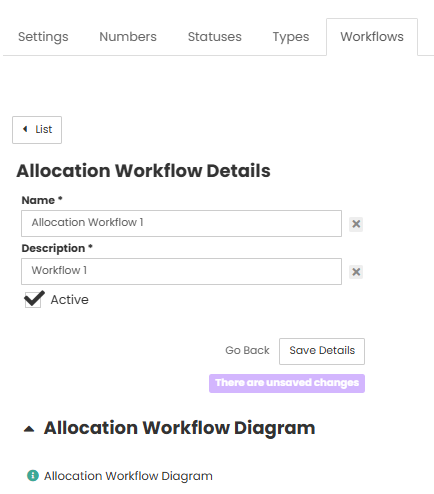
Allocations can now have a workflow created, just like the job workflows.

Click ‘Create Allocation Workflow’ in the top right-hand corner.

Fill in the Name and Description fields and make sure the Active box is ticked so the workflow can be utilised in the Allocations. Once you click Save you can start building the workflow diagram.
To build the workflow use the green Add field to select the status you want to include or use the ‘New Status’ button above the green box to create a new status.
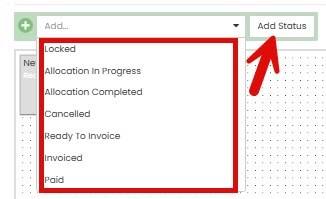
Once the status is added it will be a grey box in the workflow diagram area. You can drag and drop its positioning around as needed.

Once you have your statuses you can connect them together by drawing a line from the dark grey end of the status to the next status. This is then how you will be able to move the allocation through the statuses when in use.
You can have multiple lines going to the same status if you need to be able to have options to move the allocation into.

Once the workflows have been built you can link them to Allocation types. If you don’t link a workflow to a type, it will use the current drop down status option. You can link the workflow in Allocation Types, use the ‘Default Allocation Workflow’ dropdown to select the desired workflow.

Was this article helpful?
That’s Great!
Thank you for your feedback
Sorry! We couldn't be helpful
Thank you for your feedback
Feedback sent
We appreciate your effort and will try to fix the article